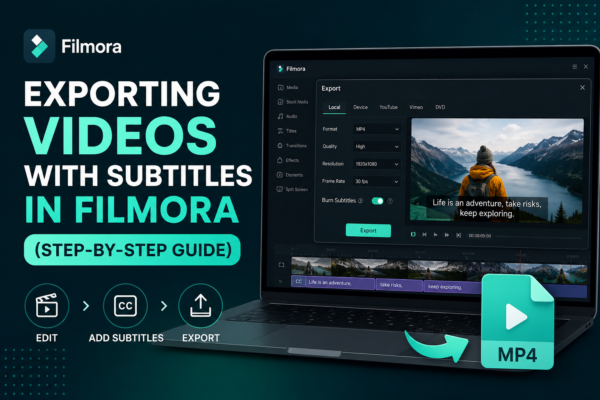
Exporting videos with subtitles in Filmora is done by first adding or importing subtitles into your timeline, then using the export settings in Wondershare Filmora. Enable subtitle embedding or export them as a separate file (SRT). Choose your format (MP4 recommended), adjust quality settings, and click export. This ensures subtitles appear permanently or as a selectable track.
Why Subtitle Export Matters
In today’s video-driven world, subtitles are no longer optional—they are essential. Whether you’re creating YouTube videos, online courses, or social media content, subtitles improve accessibility, engagement, and SEO visibility.
Many creators using Wondershare Filmora struggle with one key step: exporting videos with subtitles correctly so they appear on all devices and platforms without syncing issues.
This guide solves that problem with a practical, expert-level workflow that ensures your subtitles are properly embedded or exported separately.
What Does “Exporting Videos with Subtitles in Filmora” Mean?
Exporting videos with subtitles in Filmora refers to saving your final video project with text captions included. These subtitles can be:
- Hardcoded subtitles (burned-in): Permanently visible in the video
- Soft subtitles (SRT file): Can be turned on/off in players
- Sidecar files: Separate subtitle file exported alongside video
Understanding this difference is key for choosing the right export method.
Step-by-Step Guide: Exporting Videos with Subtitles in Filmora
Step 1: Add or Create Subtitles
Before exporting, ensure your subtitles are ready:
- Use Auto Subtitle Feature in Filmora (speech-to-text)
- Or manually add subtitles using the “Titles” tab
- Sync subtitles properly with timeline audio
💡 Pro Tip: Always preview subtitles before exporting to avoid timing issues.
Step 2: Edit and Style Subtitles (Optional but Important)
You can enhance readability by customizing:
- Font style and size
- Text color and background
- Position (bottom center is standard)
- Shadow or outline for contrast
This improves viewer retention and accessibility.
Step 3: Open Export Window
Click the Export button in the top right corner of Filmora.
You will see multiple export options:
- Local (computer file)
- Device presets
- YouTube or Vimeo upload
For best quality, choose Local Export (MP4 recommended).
Step 4: Choose Subtitle Export Option
This is the most critical step in exporting videos with subtitles in Filmora:
You typically get two options:
1. Burn-in Subtitles (Hardcoded)
- Subtitles are permanently embedded
- Cannot be turned off
- Best for social media (Instagram, TikTok)
2. Export SRT File (Soft Subtitles)
- Creates separate subtitle file
- Can be uploaded to YouTube or players
- Best for professional content and multilingual videos
Step 5: Adjust Video Settings
For optimal export quality:
- Format: MP4 (H.264 recommended)
- Resolution: 1080p or 4K
- Frame rate: Match original footage (24/30/60 fps)
- Bitrate: Higher for better clarity
Step 6: Export Video
Click Export and wait for rendering to complete.
Now your video is fully exported with subtitles either embedded or as a separate file.
Best Practices for Exporting Videos with Subtitles in Filmora
To achieve professional results, follow these expert tips:
✔ Keep subtitles short and readable
Avoid long sentences; break into 1–2 lines.
✔ Use high contrast colors
White text with black outline works best for visibility.
✔ Sync carefully with speech
Even a 0.5-second delay can reduce comprehension.
✔ Test before uploading
Always watch exported video before publishing.
Common Problems & Fixes
1. Subtitles not showing after export
- Ensure “Burn-in subtitles” option is enabled
- Check if subtitle track is visible in timeline
2. Out-of-sync subtitles
- Re-align subtitle timeline manually
- Avoid changing video speed after adding subtitles
3. Low-quality export
- Increase bitrate settings
- Use 1080p or higher resolution
Use Cases of Exporting Videos with Subtitles in Filmora
🎬 YouTube Content Creation
Boosts SEO ranking and watch time.
📱 Social Media Videos
Essential for silent autoplay platforms like Facebook and Instagram.
🎓 Online Courses
Improves accessibility for global learners.
🌍 Multilingual Content
SRT files allow translation into multiple languages.
Comparison: Burn-in vs SRT Subtitles
| Feature | Burn-in Subtitles | SRT Subtitles |
|---|---|---|
| Visibility control | Always visible | Toggle on/off |
| Editing after export | Not possible | Editable |
| Platform use | Social media | YouTube, OTT |
| File size impact | Slightly larger | Minimal |
Expert Insight
As video editing standards evolve, exporting videos with subtitles in Filmora has become a core skill for creators. Professionals recommend always exporting both:
- A high-quality video file
- A backup SRT subtitle file
This ensures maximum flexibility across platforms like YouTube, Vimeo, and OTT streaming services.
FAQs: Exporting Videos with Subtitles in Filmora
1. How do I export subtitles in Filmora permanently?
Enable the “Burn-in subtitles” option during export. This embeds subtitles directly into the video.
2. Can I export subtitles separately in Filmora?
Yes, you can export subtitles as an SRT file for use on YouTube or other platforms.
3. Why are my subtitles missing after export?
Most likely, the subtitle track was not enabled for burn-in during export settings.
4. What is the best format for exporting videos with subtitles in Filmora?
MP4 (H.264) is the most compatible format for subtitle-supported exports.
5. Can I edit subtitles after exporting from Filmora?
Only SRT subtitle files can be edited after export. Burned-in subtitles cannot be changed.
Conclusion: Master Exporting Videos with Subtitles in Filmora
Exporting videos with subtitles in Filmora is not just a technical step—it’s a crucial part of modern video production. Whether you’re creating content for YouTube, education, or marketing, properly exporting subtitles ensures accessibility, engagement, and professional quality.
By mastering the export settings in Wondershare Filmora, you gain full control over how your audience experiences your content.
If you consistently apply the steps and best practices shared in this guide, your videos will stand out with clarity, professionalism, and global reach.











