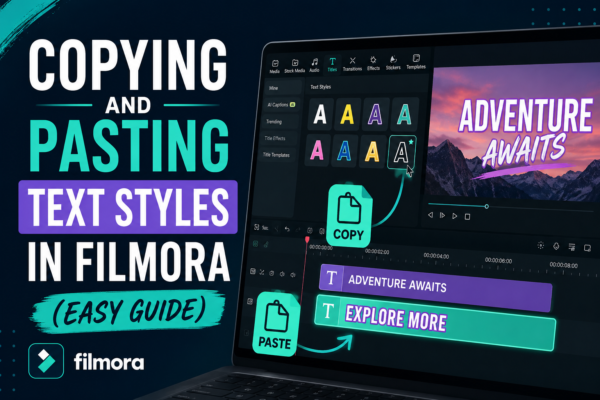
If you’ve ever spent time perfecting a text style in a video only to realize you need the same look again elsewhere, you already know how frustrating it can be to repeat the same formatting work. Fonts, colors, shadows, animations—rebuilding everything manually slows down your editing workflow.
This is where Copying and Pasting Text Styles in Filmora https://filmora.wondershare.com/ becomes a game-changer. Instead of recreating text effects from scratch, you can quickly duplicate styles across multiple clips and maintain a consistent, professional look.
In this guide, you’ll learn how to efficiently reuse text styles in Wondershare Filmora, along with expert tips, real use cases, and optimization tricks used by professional video editors.
Quick Answer
Copying and pasting text styles in Filmora allows you to duplicate font settings, colors, animations, and effects from one text element to another in seconds. Simply right-click a styled text, choose “Copy Attributes,” then apply them to another text clip using “Paste Attributes.” This ensures consistent design and saves editing time significantly.
What Does Copying Text Styles in Filmora Mean?
Copying text styles in Filmora refers to transferring visual formatting from one text layer to another. This includes:
- Font type and size
- Color and gradients
- Shadows and outlines
- Animation effects
- Positioning and spacing
Instead of manually adjusting each element, Filmora allows you to reuse a complete text design instantly.
Why It Matters in Video Editing
Maintaining consistent typography is essential for:
- Branding consistency in YouTube videos
- Professional corporate presentations
- Social media reels and ads
- Tutorial and educational videos
A unified text style improves visual storytelling and viewer engagement.
How to Copy and Paste Text Styles in Filmora (Step-by-Step)
Here is a simple, practical workflow for Copying and Pasting Text Styles in Filmora:
1: Create Your Text Style
- Open Filmora timeline
- Add a text layer using Titles
- Customize font, color, size, animation, and effects
- Preview until satisfied
2: Copy Text Attributes
- Right-click the styled text clip
- Select “Copy Attributes”
- Filmora stores all formatting settings
3: Paste Text Attributes
- Select the target text clip
- Right-click and choose “Paste Attributes”
- The new text instantly adopts the same style
4: Fine-Tune if Needed
- Adjust text content
- Modify position or timing
- Keep overall style intact
Related Keywords and SEO Variations
To improve search visibility, this guide naturally includes:
- Filmora text styling
- copy text attributes Filmora
- video editing text presets Filmora
- Filmora title styles
- text effects Filmora
- Wondershare Filmora typography tools
Real-World Use Cases of Text Style Copying
1. YouTube Branding Consistency
Creators often use:
- Same intro title style
- Lower thirds with identical design
- Consistent subtitles
Copying text styles ensures branding stays uniform across videos.
2. Social Media Content Creation
For Instagram Reels or TikTok:
- Fast editing cycles
- Multiple captions per video
- Repetitive style usage
Copy-paste functionality saves hours of repetitive formatting.
3. Corporate Video Editing
Marketing teams use Filmora for:
- Product demos
- Training videos
- Promotional content
Consistent typography builds trust and professionalism.
Benefits of Copying Text Styles in Filmora
1. Time Efficiency
Instead of redesigning text repeatedly, you apply styles instantly.
2. Visual Consistency
Keeps fonts, colors, and animations uniform across the entire project.
3. Better Workflow Productivity
Editors can focus more on storytelling instead of repetitive formatting.
4. Reduced Human Error
Avoid mismatched fonts or inconsistent design elements.
Pro Tips for Better Text Styling in Filmora
Use Title Presets Wisely
Filmora provides built-in templates—combine them with copied styles for advanced designs.
Save Your Favorite Styles
Create reusable templates for future projects.
Combine With Animation Effects
Enhance copied styles using motion presets for dynamic visuals.
Maintain Brand Kit
Keep consistent font palettes for long-term content identity.
Copy vs Manual Editing: Which Is Better?
| Feature | Copy-Paste Style | Manual Editing |
|---|---|---|
| Speed | Very Fast | Slow |
| Consistency | High | Medium |
| Flexibility | Moderate | High |
| Beginner Friendly | Yes | Yes but time-consuming |
Conclusion: Copy-paste method is ideal for productivity and consistency, especially for content creators working on multiple videos.
Common Mistakes to Avoid
- Copying styles without checking compatibility
- Overusing animations leading to cluttered visuals
- Ignoring brand consistency
- Not previewing final output before exporting
FAQ: Copying and Pasting Text Styles in Filmora
1. How do I copy text style in Filmora quickly?
Right-click the text clip, select “Copy Attributes,” then apply it to another text using “Paste Attributes.”
2. Can I copy animation effects along with text styles?
Yes, Filmora copies animations, fonts, colors, shadows, and effects together.
3. Does Filmora allow saving text presets?
Yes, you can save custom titles as reusable templates for future projects.
4. Why is my pasted style not working correctly?
This may happen due to incompatible text types or missing elements in the target clip.
5. Is copying text styles useful for beginners?
Absolutely. It simplifies editing and helps beginners create professional-looking videos quickly.
Conclusion
Mastering Copying and Pasting Text Styles in Filmora is one of the simplest yet most powerful editing skills you can learn. It helps you maintain consistency, save time, and produce visually appealing content without repetitive effort.
Whether you’re editing YouTube videos, business presentations, or social media content, this feature ensures your typography always looks clean, professional, and cohesive.
If you’re serious about improving your video editing workflow, start using this method in your next project and experience the difference in speed and quality.











