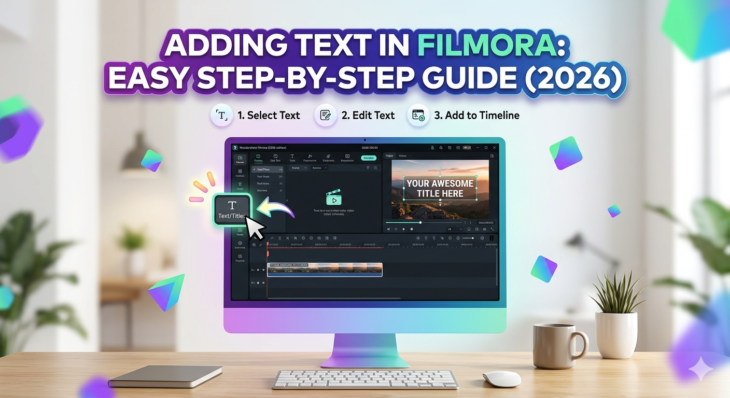
Adding text in videos is one of the most powerful editing techniques used in modern content creation. Whether you’re making YouTube videos, TikTok edits, tutorials, or business promos, adding text in Filmora helps you communicate clearly, grab attention, and improve storytelling.
The challenge? Many beginners struggle to find the right tools or understand how to properly customize text inside Filmora. If you’ve ever asked, “How do I add professional-looking text in Filmora?” — this guide is exactly for you.
In this complete SEO-optimized tutorial, you’ll learn everything from basic text insertion to advanced customization techniques used by professional editors but if you are new , first read our complete guide on Filmora for beter understanding https://youtubevideoeditingservices.com/what-is-filmora-video-editing-guide/
Quick Answer
Adding text in Filmora is simple:
Open Filmora → Import video → Go to Titles tab → Drag a text template to timeline → Edit text in preview panel → Customize font, color, animation, and duration. You can also add motion effects, lower-thirds, and subtitles for professional results.
What is Adding Text in Filmora?
Adding text in Filmora refers to the process of inserting and customizing written content (titles, captions, subtitles, or labels) inside a video using the Filmora video editing software.
It allows creators to:
- Add titles and introductions
- Insert subtitles for accessibility
- Highlight important information
- Improve storytelling with animated text
- Create professional branding overlays
Filmora (by Wondershare) is widely used because it offers drag-and-drop text editing without requiring advanced editing skills.
Why Adding Text in Filmora Matters
In today’s digital content world, text is not optional—it is essential.
Key benefits of adding text in Filmora:
- Improves viewer engagement
- Helps explain complex ideas visually
- Boosts retention in YouTube videos
- Makes content accessible for silent viewers
- Enhances branding and professionalism
For example, YouTubers often use animated titles to introduce topics, while marketers use bold text overlays to highlight offers.
How to Add Text in Filmora (Step-by-Step Guide)
Here is a beginner-friendly breakdown of adding text in Filmora:
1: Import Your Video
- Open Filmora
- Click “Import Media”
- Drag your video into the timeline
2: Open the Titles Panel
- Go to the “Titles” tab
- Browse through text templates like:
- Basic Titles
- Lower Thirds
- Subtitle styles
- Animated text
3: Drag and Drop Text
- Select a template
- Drag it onto your timeline above the video track
4: Edit Text Content
- Double-click the text in the preview window
- Type your desired message
- Example: “Welcome to My Channel” or “Step 1: Import Video”
5: Customize Text Style
You can modify:
- Font style
- Size
- Color
- Position
- Animation effects
6: Adjust Duration
- Drag edges of text clip in timeline
- Sync with your video timing
For further understanding, you can read https://filmora.wondershare.com/video-editing-tips/text-overlay.html
Advanced Text Editing Features in Filmora
Once you understand basic adding text in Filmora, you can explore advanced features:
1. Animated Text Effects
Filmora offers motion text like:
- Fade in/out
- Zoom effects
- Slide animations
2. Keyframing Text
You can animate text manually:
- Move text across screen
- Change opacity over time
- Create dynamic storytelling effects
3. Text Presets
Filmora provides ready-made templates for:
- YouTube intros
- Social media reels
- Business presentations
4. Subtitle Tool
Automatically or manually add subtitles for:
- Educational videos
- Vlogs
- Tutorials
Best Practices for Adding Text in Filmora
To make your videos more professional, follow these expert tips:
Keep It Simple
Avoid overcrowding the screen with too much text.
Use Contrast Colors
Ensure text is readable against the background.
Match Timing
Text should appear when the speaker mentions it.
Use Consistent Fonts
Maintain brand identity across videos.
Don’t Overuse Animation
Too many effects can distract viewers.
Common Use Cases of Adding Text in Filmora
1. YouTube Videos
- Titles
- Subscribe reminders
- Chapter labels
2. Social Media Content
- Instagram Reels captions
- TikTok hooks
- Facebook video highlights
3. Business Marketing Videos
- Product names
- Pricing details
- Call-to-action messages
4. Educational Content
- Key points
- Definitions
- Step-by-step instructions
Filmora Text Editing vs Other Editors
| Feature | Filmora | Adobe Premiere Pro | CapCut |
|---|---|---|---|
| Ease of Use | ⭐⭐⭐⭐⭐ | ⭐⭐ | ⭐⭐⭐⭐ |
| Text Templates | High | Medium | High |
| Beginner Friendly | Yes | No | Yes |
| Animation Options | Good | Advanced | Good |
Insight: Filmora is ideal for beginners who want fast and professional adding text in Filmora results without complex workflows.
Pros and Cons of Adding Text in Filmora
Pros
- Easy drag-and-drop system
- Rich text templates
- Beginner-friendly interface
- Fast editing workflow
Cons
- Limited advanced customization compared to Adobe tools
- Some premium templates require paid version
Expert Insight
Professional video editors often emphasize that text is not just decoration—it is communication design. In Filmora, well-placed text can increase watch time by guiding viewer attention and reinforcing key messages.
A strong editing strategy includes:
- Minimal but impactful text usage
- Consistent typography style
- Strategic placement aligned with speech or visuals
FAQs
1. How do I add text in Filmora for beginners?
Go to Titles → Drag a text style → Edit text → Customize font and color → Adjust timing on timeline.
2. Can I animate text in Filmora?
Yes, Filmora offers built-in animation effects like fade, slide, zoom, and motion presets.
3. Is adding text in Filmora free?
Basic text features are free, but premium templates require a paid Filmora version.
4. Can I add subtitles in Filmora automatically?
Yes, Filmora has an auto-subtitle feature that generates captions from audio.
5. What is the best font for Filmora text editing?
Simple, readable fonts like Arial, Roboto, or Montserrat work best for professional videos.
Conclusion
Mastering adding text in Filmora is one of the fastest ways to improve your video quality and storytelling. Whether you are a beginner YouTuber, marketer, or educator, text helps you communicate more clearly and professionally.
By using Filmora’s built-in titles, animations, and customization tools, you can create visually engaging videos without needing advanced editing skills.
If you’re serious about video editing, start experimenting with different text styles today—small changes can make a big impact on your content quality and audience engagement.











