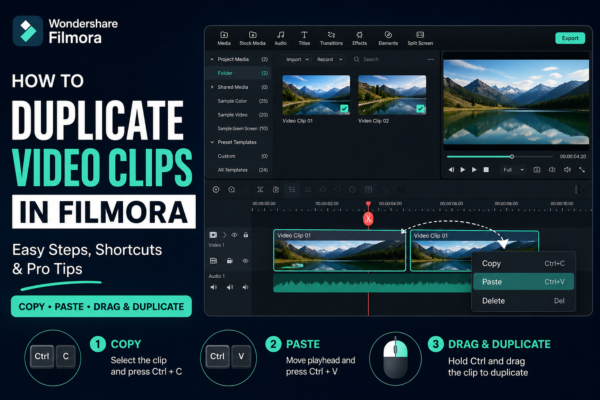
Video editing becomes much faster when you know simple tricks that save time. One of the most useful editing skills in Wondershare Filmora is learning how to duplicate video clips in Filmora. Whether you’re creating YouTube content, short reels, or professional videos, duplicating clips helps you build effects, reuse scenes, and maintain consistency without starting from scratch.
In this guide, you’ll learn multiple ways to duplicate video clips in Filmora, real-world use cases, shortcuts, expert editing tips, and common mistakes to avoid—all explained in a simple, human-friendly way.
Quick Answer
To duplicate video clips in Filmora:
- Select the clip on the timeline
- Right-click and choose Copy
- Right-click again and select Paste
- Or use shortcut Ctrl + C (Copy) and Ctrl + V (Paste)
- The duplicated clip will appear on the timeline for reuse or editing
You can also hold Ctrl and drag the clip to quickly duplicate it in the timeline.
What Does Duplicating Video Clips in Filmora Mean?
Duplicating video clips in Filmora means creating an exact copy of a video segment already placed on the timeline. This copy includes:
- Original video content
- Audio (if linked)
- Effects and adjustments (if applied)
Instead of importing the same file again, duplication lets you reuse clips instantly within your project.
Why it matters
Professional editors often duplicate clips to:
- Create slow-motion or speed variations
- Add repeated transitions or effects
- Build highlight sequences
- Test different edits without losing original work
How to Duplicate Video Clips in Filmora (Step-by-Step Methods)
Method 1: Copy & Paste (Most Common Method)
This is the simplest way to duplicate video clips in Filmora.
Steps:
- Open your project in Wondershare Filmora
- Click the clip in the timeline
- Press Ctrl + C (Copy)
- Move the playhead where you want the duplicate
- Press Ctrl + V (Paste)
✔ Best for beginners
✔ Works for all media types
Method 2: Right-Click Duplication
If you prefer mouse controls:
Steps:
- Right-click on the clip
- Click Copy
- Right-click on the timeline again
- Select Paste
✔ Easy for users who don’t use shortcuts
✔ Useful for precise editing workflows
Method 3: Drag + Ctrl Method (Fastest Workflow)
Professional editors prefer this method.
Steps:
- Hold Ctrl key
- Drag the clip to a new position on the timeline
- Release to create a duplicate instantly
✔ Very fast
✔ Ideal for bulk editing
✔ Saves time in long projects
Method 4: Duplicate Using Alt Key (Advanced Trick)
Some versions allow:
- Hold Alt
- Drag clip to duplicate
✔ Smooth workflow for repetitive edits
✔ Great for creating layered effects
Real-World Use Cases of Duplicating Clips
Understanding how to duplicate video clips in Filmora becomes more powerful when you apply it in real projects.
1. Creating YouTube Intros & Outros
You can duplicate a branded intro clip and adjust:
- Speed
- Color grading
- Text overlays
2. Making Slow Motion Effects
Duplicate a clip and:
- Slow down one version
- Keep another at normal speed for comparison
3. Creating Transitions
Duplicate a clip and apply:
- Blur effects
- Zoom transitions
- Fade overlays
4. Social Media Reels Editing
For TikTok or Instagram:
- Repeat key moments
- Highlight reactions
- Build rhythm-based edits
Pro Tips for Duplicating Video Clips in Filmora
1. Use Nested Editing
Instead of duplicating raw clips, group them first for cleaner workflow.
2. Rename or Label Tracks
When duplicating multiple clips, labeling helps avoid confusion.
3. Avoid Over-duplication
Too many duplicates can:
- Increase project size
- Slow down editing performance
4. Combine with Keyframes
After duplicating clips, use keyframes for:
- Zoom effects
- Motion tracking
- Smooth transitions
5. Use Proxy Mode for Heavy Projects
If duplication slows your system, enable proxy editing in Filmora.
Common Mistakes to Avoid
Even experienced editors make these mistakes when duplicating clips:
- ❌ Copying without checking timeline position
- ❌ Overlapping audio unintentionally
- ❌ Forgetting to unlink audio/video before duplication
- ❌ Not organizing duplicated layers
- ❌ Repeating clips too many times without variation
Duplicating Clips vs Re-importing Media
| Feature | Duplicate Clip | Re-import File |
|---|---|---|
| Speed | Fast | Slower |
| Editing Control | High | Medium |
| Storage Usage | Low | High |
| Workflow Efficiency | Better | Less efficient |
✔ Duplication is better for active editing
✔ Re-importing is better for separate projects
Best Practices for Efficient Editing in Filmora
To get the most out of duplicating video clips in Filmora:
- Keep timeline organized
- Use folders in media bin
- Label duplicated clips
- Combine duplication with effects library
- Save versions of your project regularly
These habits improve workflow and reduce editing errors significantly.
Internal Linking Suggestions (for your blog/website)
You can connect this article with related Filmora tutorials such as:
- How to Split Video Clips in Filmora
- How to Add Transitions in Filmora
- Beginner Guide to Filmora Timeline Editing
- How to Add Effects in Filmora
- How to Export Videos in Filmora
External Authority References
For more technical details and official guidance:
Frequently Asked Questions (FAQ)
1. How do I duplicate video clips in Filmora quickly?
You can press Ctrl + C to copy and Ctrl + V to paste, or hold Ctrl and drag the clip.
2. Can I duplicate multiple clips at once in Filmora?
Yes, select multiple clips using Shift or Ctrl, then copy and paste them together.
3. Does duplicating clips affect original footage?
No, duplication creates a separate copy while keeping the original unchanged.
4. What is the fastest way to duplicate clips in Filmora?
The fastest method is Ctrl + drag directly on the timeline.
5. Why should I duplicate clips instead of re-importing them?
Duplicating is faster, keeps your workflow smooth, and allows easier timeline editing.
Conclusion
Learning how to duplicate video clips in Filmora is a small but powerful editing skill that can dramatically improve your workflow. Whether you’re a beginner or a content creator, mastering this technique helps you edit faster, stay organized, and create more professional-looking videos.
With simple shortcuts like copy-paste or Ctrl-drag, you can save hours of editing time and focus more on creativity instead of repetitive tasks.
If you’re serious about video editing, start practicing clip duplication today—it’s one of those small skills that makes a big difference in your overall production quality.











