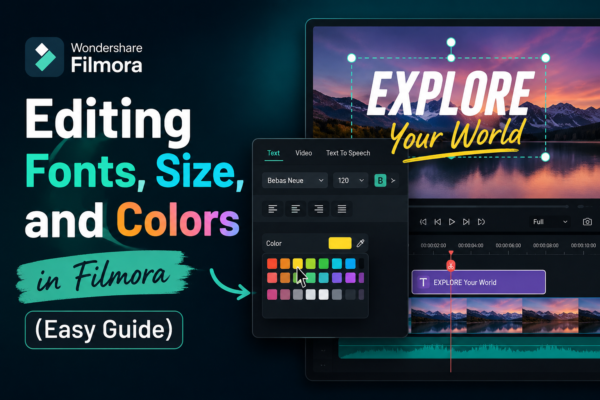
If you’ve ever added text to a video and thought, “This doesn’t look right…” — you’re not alone. Text styling can make or break your video’s visual appeal. The good news? With Wondershare Filmora https://filmora.wondershare.com/ editing fonts, size, and colors is not only easy—it’s powerful when done right but before moving further you must read our complete guide on Timeline in filmora https://youtubevideoeditingservices.com/timeline-in-filmora-guide/
This guide walks you through everything you need to know, from basic adjustments to pro-level styling techniques that make your videos stand out.
✅ Quick Answer
To edit fonts, size, and colors in Filmora, add a text element to your timeline, double-click it, and use the Text Editing Panel. Choose a font, adjust the size slider, and pick colors from the color palette. You can also apply presets, customize outlines, shadows, and animations for a polished look.
🎬 Why Text Styling Matters in Video Editing
Text is more than just words—it’s part of your storytelling. Whether you’re creating YouTube videos, tutorials, or social media content, your text should:
- Grab attention instantly
- Match your brand identity
- Enhance readability across devices
- Support your message, not distract from it
Poor font choices or clashing colors can make even great content look unprofessional.
✍️ What is Text Editing in Filmora?
Text editing in Filmora refers to customizing on-screen text elements, including:
- Font style (typography)
- Font size (scale and visibility)
- Text color and background
- Effects like shadow, outline, and animation
It’s a core part of video editing that helps communicate your message visually.
🛠️ How to Edit Fonts, Size, and Colors in Filmora
1. Add Text to Your Timeline
- Open Filmora
- Go to the Titles tab
- Drag a text preset to your timeline
2. Open the Text Editor
- Double-click the text clip
- The Text Editing Panel will appear
3. Change Font Style
- Select your text
- Choose a font from the dropdown
- Preview instantly in the video
💡 Tip: Use clean fonts like Arial or Montserrat for professional videos.
4. Adjust Font Size
- Use the size slider or input value manually
- Resize directly from the preview window
Best Practice:
- Titles: Large and bold
- Subtitles: Medium and readable
- Captions: Smaller but clear
5. Edit Text Colors
- Click on the color picker
- Choose from presets or custom colors
- Adjust opacity if needed
🎨 Pro Tip: Stick to 2–3 brand colors for consistency.
6. Apply Advanced Styling
Filmora lets you go beyond basics:
- Outline: Add borders to text
- Shadow: Create depth
- Glow: Highlight important words
- Background: Add color blocks behind text
🎯 Real-World Use Cases
YouTube Videos
Use bold fonts and high-contrast colors to grab attention in thumbnails and intros.
Educational Content
Stick with simple fonts and neutral colors for better readability.
Social Media Clips
Experiment with vibrant colors and animations to stand out in feeds.
⚖️ Filmora Text Editing vs Other Tools
| Feature | Filmora | Adobe Premiere Pro | Canva |
|---|---|---|---|
| Ease of Use | ⭐⭐⭐⭐⭐ | ⭐⭐ | ⭐⭐⭐⭐ |
| Font Customization | ⭐⭐⭐⭐ | ⭐⭐⭐⭐⭐ | ⭐⭐⭐⭐ |
| Color Control | ⭐⭐⭐⭐ | ⭐⭐⭐⭐⭐ | ⭐⭐⭐ |
| Beginner Friendly | ⭐⭐⭐⭐⭐ | ⭐⭐ | ⭐⭐⭐⭐⭐ |
Verdict: Filmora strikes a perfect balance between simplicity and powerful features.
👍 Pros and 👎 Cons of Editing Text in Filmora
Pros
- Beginner-friendly interface
- Wide range of fonts and styles
- Real-time preview
- Built-in animations
Cons
- Limited advanced typography controls compared to pro tools
- Fewer font import options
🔑 Expert Tips for Better Text Styling
- Use contrast wisely: Light text on dark background works best
- Avoid over-styling: Too many effects can distract viewers
- Stick to 1–2 fonts: Keeps your video consistent
- Test on mobile: Ensure readability on small screens
- Align text properly: Use grids and guides
❓ Frequently Asked Questions (FAQs)
1. How do I change the font in Filmora?
Double-click your text clip, open the Text Panel, and select a new font from the dropdown menu.
2. Can I upload custom fonts in Filmora?
Yes, if the font is installed on your computer, Filmora will detect and allow you to use it.
3. What is the best font size for videos?
It depends on your content, but generally:
- Titles: 40–80 pt
- Subtitles: 20–40 pt
4. How do I make text more readable?
Use:
- High contrast colors
- Simple fonts
- Adequate spacing
5. Can I animate text in Filmora?
Yes, Filmora offers built-in text animations like fade, slide, and typewriter effects.
🎯 Conclusion: Make Your Text Work for You
Editing fonts, size, and colors in Filmora isn’t just a technical task—it’s a creative opportunity. With the right combination of typography, color, and styling, your videos can look more professional, engaging, and memorable.
Start simple, experiment often, and always keep your audience in mind.
👉 Ready to level up your videos? Open Filmora and start customizing your text today—your viewers will notice the difference.











