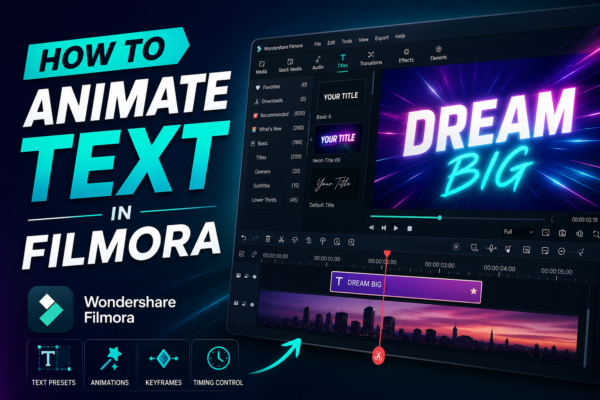
Text animation can transform an ordinary video into something visually engaging and professional. Whether you’re creating YouTube content, social media reels, or tutorials, animated text helps you grab attention, highlight key points, and keep viewers watching.
If you’ve ever wondered how creators add smooth, eye-catching titles—you’re in the right place. In this guide, you’ll learn exactly how to animate text using Filmora, even if you’re just starting out.
Quick Answer
To animate text in Filmora, add a text preset from the Titles panel, place it on the timeline, and open the animation settings. Choose from preset animations like fade, slide, or typewriter, or create custom motion using keyframes. Adjust timing, speed, and effects to match your video style.
What is Text Animation in Filmora?
Text animation in Filmora refers to adding motion effects to text elements—like titles, captions, or subtitles—to make them visually dynamic. Instead of static text, animations can:
- Fade text in and out
- Slide text across the screen
- Create typing effects
- Add zoom or bounce motion
These animations are built directly into Filmora, making it beginner-friendly while still powerful enough for advanced users.
Why Use Animated Text in Your Videos?
Let’s be real—static text is boring. Animated text helps you:
- Capture attention quickly (especially in the first 3 seconds)
- Improve storytelling
- Highlight important information
- Boost viewer retention
- Enhance branding and style
Real-World Example
Imagine a travel vlog:
- Static text: “Paris 2026”
- Animated text: A stylish fade-in with motion blur and background music
Which one feels more cinematic? Exactly.
How to Animate Text in Filmora (Step-by-Step)
1: Import Your Media
- Open Filmora
- Import your video clips
- Drag them onto the timeline
2: Add Text to Timeline
- Go to Titles tab
- Choose a preset style
- Drag it onto the timeline above your video
3: Customize Your Text
Double-click the text layer:
- Change font, size, and color
- Edit the text content
- Adjust alignment and spacing
4: Apply Animation
Inside the text editor:
- Go to the Animation tab
- Choose from:
- In animations (entrance effects)
- Out animations (exit effects)
- Loop animations (continuous motion)
5: Use Keyframe Animation (Advanced)
For more control:
- Enable keyframes
- Adjust position, scale, rotation over time
- Create custom motion paths
6: Preview and Export
- Play your video to preview
- Adjust timing if needed
- Export your final video
Types of Text Animations You Can Create
1. Basic Animations
- Fade in/out
- Slide left/right
- Zoom in/out
2. Advanced Animations
- Typewriter effect
- Glitch effects
- Motion tracking text
3. Custom Keyframe Animations
- Control every movement manually
- Ideal for cinematic projects
Best Practices for Text Animation (Expert Tips)
Keep It Simple
Overusing flashy animations can distract viewers. Stick to clean, smooth transitions.
Match Your Video Style
- Corporate video → minimal animation
- Gaming video → energetic motion
Timing is Everything
- Keep animations short (1–2 seconds)
- Sync with music or voiceover
Use Contrast Wisely
Make sure your text stands out against the background.
Common Mistakes to Avoid
- ❌ Using too many animation styles in one video
- ❌ Making text unreadable with excessive effects
- ❌ Ignoring timing and pacing
- ❌ Overlapping animations
Filmora vs Other Video Editors (Quick Comparison)
| Feature | Filmora | Premiere Pro | CapCut |
|---|---|---|---|
| Ease of Use | ⭐⭐⭐⭐⭐ | ⭐⭐ | ⭐⭐⭐⭐ |
| Text Animation | ⭐⭐⭐⭐ | ⭐⭐⭐⭐⭐ | ⭐⭐⭐⭐ |
| Beginner Friendly | Yes | No | Yes |
| Customization | Medium | High | Medium |
Conclusion: Filmora strikes the perfect balance between simplicity and power.
Use Cases of Text Animation
1. YouTube Videos
- Intro titles
- Call-to-actions (Subscribe, Like)
2. Social Media Content
- Instagram reels
- TikTok captions
3. Educational Videos
- Highlight key concepts
- Step-by-step instructions
4. Business Promotions
- Product highlights
- Brand messaging
Frequently Asked Questions (FAQ)
1. How do I animate text in Filmora for beginners?
- Add text from the Titles tab
- Choose an animation preset
- Adjust timing and preview
2. Can I create custom text animations in Filmora?
Yes, using keyframes, you can control position, scale, and rotation for unique animations.
3. What is the best text animation style?
It depends on your content:
- Educational → simple fade
- Entertainment → dynamic motion
4. Does Filmora support advanced motion graphics?
Filmora supports basic to moderate motion graphics, but for high-end animations, tools like After Effects are more powerful.
5. Why is my text animation lagging?
Possible reasons:
- Heavy effects
- Low system performance
- High-resolution preview settings
Final Thoughts
Animating text in Filmora isn’t just about making things look cool—it’s about improving communication, engagement, and storytelling. With just a few clicks (or some creative keyframing), you can elevate your videos from average to professional.
If you’re serious about content creation, mastering text animation is a must-have skill.
👉 Next Step: Open Filmora and try creating your first animated title today. Experiment, tweak, and most importantly—have fun with it.











