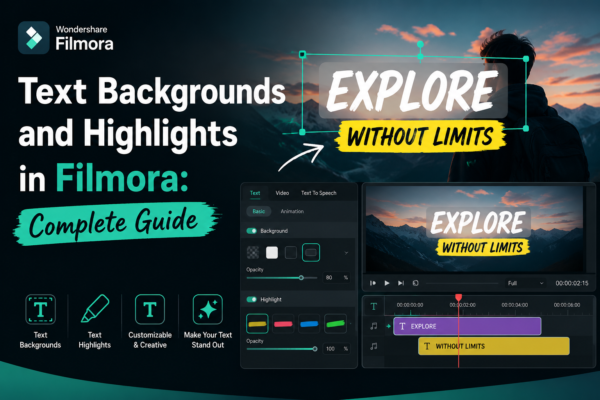
In modern video editing, clear and visually appealing text is just as important as the footage itself. Whether you’re creating YouTube videos, social media reels, tutorials, or business presentations, poorly styled text can ruin viewer engagement in seconds.
That’s where text backgrounds and highlights in Filmora https://filmora.wondershare.com/ come in. They help your message stand out, improve readability, and add a professional cinematic touch to your videos.
In this guide, you’ll learn how to use text backgrounds and highlights in Filmora step-by-step, along with expert tips, use cases, and SEO-friendly design strategies used by professional video editors.
Quick Answer
Text backgrounds and highlights in Filmora are visual effects applied behind or around text to improve readability and style. You can add them using Filmora’s Text editing panel by selecting a title preset, customizing background shapes, adjusting opacity, and applying highlight effects. These tools help make text more visible and engaging in videos.
What Are Text Backgrounds and Highlights in Filmora?
Text backgrounds and highlights in Filmora refer to styling options that enhance text visibility in video projects.
- Text background: A colored or shaped layer behind text
- Text highlight: Emphasis effect applied to specific words or phrases
- Purpose: Improve readability and visual appeal
In the software Filmora, these features are widely used in YouTube content, educational videos, marketing ads, and cinematic storytelling.
Why Use Text Backgrounds and Highlights in Video Editing?
Using text without styling often makes it hard to read, especially on busy backgrounds. Here’s why professionals rely on text backgrounds and highlights in Filmora:
1. Better Readability
Text stands out even on complex or colorful video scenes.
2. Professional Look
Adds a polished and modern editing style.
3. Viewer Engagement
Highlighted text naturally draws attention.
4. Branding Consistency
Helps maintain a consistent visual identity across videos.
How to Add Text Backgrounds in Filmora (Step-by-Step)
If you’re new to Filmora, follow these simple steps:
1: Add Text Layer
- Open Filmora timeline
- Click on Titles
- Drag a text preset onto the timeline
2: Enter Text Editing Mode
- Double-click the text layer
- Open the text editing panel
3: Enable Background Option
- Look for Background settings
- Toggle background ON
4: Customize Background Style
You can adjust:
- Color
- Opacity
- Shape (rectangle, rounded, circle)
- Padding around text
5: Preview and Adjust
Play your video and fine-tune positioning for best results.
How to Add Text Highlights in Filmora
Highlighting text is slightly different from backgrounds. It focuses on emphasizing specific words.
1: Manual Highlight Effect
- Select text
- Change color of specific words
- Increase font weight (bold effect)
2: Shape Overlay Highlight
- Add a shape (rectangle or underline)
- Place it behind text
- Adjust transparency
3: Animation-Based Highlight
- Use text animation presets
- Apply “fade in” or “pop-up” effects
Best Use Cases of Text Backgrounds and Highlights in Filmora
1. YouTube Tutorials
Highlight key instructions so viewers don’t miss steps.
2. Educational Videos
Emphasize definitions and important terms.
3. Marketing Ads
Make product names and offers stand out.
4. Social Media Reels
Increase engagement with bold visual text styles.
5. Vlogs
Add storytelling emphasis for emotional impact.
Pro Tips for Better Text Design in Filmora
Here are expert-level strategies used by professional editors:
Use Contrast Wisely
Always ensure text background contrasts with video footage.
Don’t Overuse Highlights
Too many highlights reduce impact.
Match Brand Colors
Keep consistent color themes for recognition.
Keep Text Short
Less text = better engagement.
Use Animation Smartly
Subtle motion works better than flashy effects.
Comparison: Text Without vs With Backgrounds in Filmora
| Feature | Without Background | With Background |
|---|---|---|
| Readability | Low | High |
| Visual Appeal | Basic | Professional |
| Viewer Focus | Distracted | Focused |
| Engagement | Moderate | High |
Common Mistakes to Avoid
- Using bright backgrounds with no contrast
- Overloading screen with text
- Ignoring mobile readability
- Using too many highlight colors
- Poor alignment and spacing
Avoiding these mistakes ensures your text backgrounds and highlights in Filmora look clean and professional.
FAQ: Text Backgrounds and Highlights in Filmora
1. What are text backgrounds in Filmora?
Text backgrounds are colored or shaped layers placed behind text to improve readability and visual impact.
2. How do I highlight text in Filmora?
You can highlight text by changing font colors, adding shapes behind words, or using animation effects.
3. Are text backgrounds customizable in Filmora?
Yes, you can customize color, opacity, shape, and size of text backgrounds in Filmora.
4. Why should I use text highlights in videos?
Highlights help viewers focus on important information and improve engagement.
5. Can I animate text backgrounds in Filmora?
Yes, Filmora allows you to animate text and background elements for dynamic video effects.
Conclusion
Mastering text backgrounds and highlights in Filmora is a game-changer for anyone serious about video editing. It not only improves readability but also elevates the overall production quality of your content.
Whether you’re editing YouTube videos, ads, or tutorials, these techniques help you communicate more effectively and keep your audience engaged.
Start experimenting inside Filmora today and transform your plain text into visually powerful storytelling elements.











