Why Your Videos Still Look “Amateur” (Even With Good Editing)
You can shoot a great video, add smooth transitions, and even color-grade it perfectly—but something still feels missing. That “missing piece” is often lower thirds in Filmora.
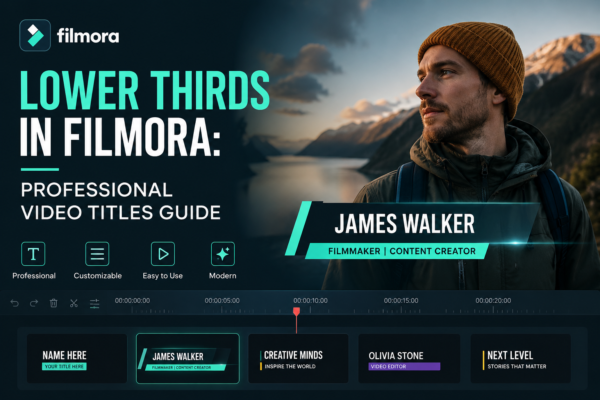
Lower thirds are those sleek text overlays that appear at the bottom of the screen, usually showing names, titles, or context. They may look small, but they carry huge weight in making your videos feel professional, credible, and broadcast-ready.
In this guide, you’ll learn how to use lower thirds for professional videos in Filmora, customize them effectively, and apply industry-level techniques even if you’re a beginner.
Quick Answer
Lower thirds https://en.wikipedia.org/wiki/Lower_third in Filmora are animated text overlays placed at the bottom of a video frame to display important information like names, titles, or context.
To use them:
- Open Filmora and go to the Titles section
- Select a lower third template
- Drag it to the timeline
- Edit text, fonts, colors, and animation
- Export your video with professional-quality graphics
They improve clarity, branding, and viewer engagement instantly.
What Are Lower Thirds in Filmora?
Lower thirds in Filmora are pre-designed or custom text elements placed in the lower portion of your video screen. They are widely used in:
- YouTube videos
- Interviews
- Corporate presentations
- News-style content
- Online courses
In Filmora, a popular video editing software, lower thirds come as ready-made templates under the “Titles” section, allowing creators to add professional graphics without advanced design skills.
Why Lower Thirds Matter for Professional Videos
Adding lower thirds for professional videos in Filmora is not just decoration—it’s communication.
1. Improves Viewer Understanding
Lower thirds help explain:
- Who is speaking
- What role they have
- What context the viewer needs
2. Builds Brand Authority
Consistent lower thirds create:
- A recognizable visual identity
- A polished, studio-like feel
- Trust among viewers
3. Enhances Engagement
When information is easy to read and visually appealing, viewers stay longer.
4. Essential for Storytelling
Especially in interviews, documentaries, and educational content.
How to Add Lower Thirds in Filmora (Step-by-Step Guide)
Here’s a simple workflow to create lower thirds in Filmora:
Step 1: Open Filmora
Launch Filmora and import your video into the timeline.
Step 2: Go to Titles Section
Click on the “Titles” tab in the top menu.
Step 3: Search Lower Third Templates
Use keywords like:
- “Lower Third”
- “Clean Lower Third”
- “Corporate Lower Third”
Step 4: Drag and Drop
Place your selected template above the video clip in the timeline.
Step 5: Customize Text
Double-click the template and edit:
- Name
- Title
- Color
- Font style
Step 6: Adjust Timing
Extend or shorten the duration based on dialogue or scene length.
Step 7: Preview and Export
Always preview before exporting to ensure smooth animation.
Best Practices for Lower Thirds in Filmora
To make your Filmora lower thirds templates look truly professional, follow these expert tips:
Keep It Simple
Avoid clutter. Use:
- One name line
- One title line
Match Your Brand Style
Stick to:
- Brand colors
- Consistent fonts
- Same animation style
Ensure Readability
- Use high contrast colors
- Avoid overly decorative fonts
Time It Properly
Lower thirds should appear:
- 1–2 seconds after speech starts
- Stay long enough to read
- Exit smoothly
Use Subtle Animation
Avoid flashy or distracting effects unless your content is entertainment-based.
Types of Lower Thirds You Can Create in Filmora
1. Basic Lower Thirds
Simple text + animation
Best for YouTube creators
2. Corporate Lower Thirds
Clean, minimal design
Used in business videos
3. Social Media Lower Thirds
Bold colors and dynamic motion
Great for Instagram or TikTok
4. Interview Lower Thirds
Includes:
- Name
- Position
- Company
5. Educational Lower Thirds
Used in online courses or tutorials
Common Mistakes to Avoid
Even experienced editors make these errors with lower thirds in Filmora:
- Using too many fonts
- Over-animated graphics
- Poor color contrast
- Placing text too close to edges
- Overloading information
A good lower third should support the video—not overpower it.
Filmora Lower Thirds vs Professional Editing Software
| Feature | Filmora | Premiere Pro |
|---|---|---|
| Ease of Use | Very Easy | Advanced |
| Templates | Built-in | Limited |
| Customization | Medium | High |
| Learning Curve | Low | High |
| Best For | Beginners & creators | Professionals |
Filmora is ideal for fast, high-quality results without technical complexity.
Use Cases of Lower Thirds in Real Projects
Here’s where lower thirds for professional videos in Filmora shine:
YouTube Videos
Introduce yourself or guests
Business Presentations
Display speaker name and designation
Online Courses
Highlight key terms or instructors
Interviews
Clarify speaker identity
Marketing Videos
Add brand credibility and polish
Pro Tips for Better Results (Expert Insights)
- Combine lower thirds with subtle background music for impact
- Animate entrance and exit consistently
- Keep branding consistent across all videos
- Use motion tracking for advanced placement
- Save custom presets for faster editing
These techniques help you move from beginner to professional-level editing quickly.
FAQ: Lower Thirds in Filmora
1. What are lower thirds in Filmora used for?
They are used to display names, titles, or important context at the bottom of the video screen.
2. How do I edit lower thirds in Filmora?
Drag a template, double-click it, and modify text, font, colors, and animation.
3. Are lower thirds important for YouTube videos?
Yes, they improve professionalism and help viewers understand content better.
4. Can I create custom lower thirds in Filmora?
Yes, you can fully customize templates or build your own using text and motion tools.
5. What is the best style for lower thirds?
Simple, clean, and readable designs work best for most professional content.
Conclusion: Make Your Videos Look Instantly Professional
Using lower thirds in Filmora is one of the fastest ways to upgrade your video quality without advanced editing skills. Whether you’re creating YouTube content, business presentations, or online courses, these small text overlays make a big difference in clarity, branding, and professionalism.
Start simple, stay consistent, and focus on readability. Over time, your Filmora lower thirds templates will become a signature part of your editing style.
If you’re serious about improving your video production quality, mastering lower thirds is not optional—it’s essential.











