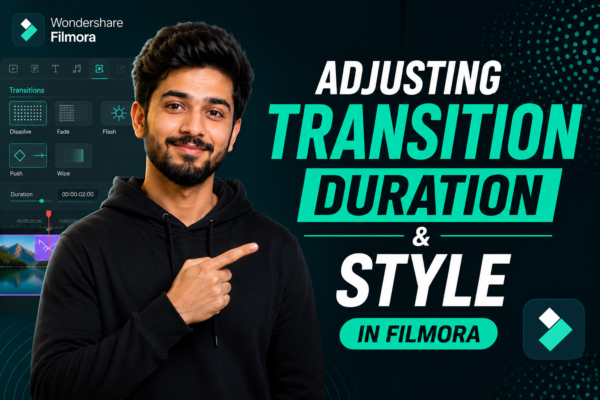
Video editing is not just about cutting clips—it’s about storytelling. One of the most powerful yet underrated tools in editing is transitions. When used correctly in Filmora, transitions can completely transform your video flow, making it more professional, cinematic, and engaging.
But here’s the challenge: many beginners either overuse transitions or don’t know how to adjust their duration and style properly. The result? Awkward pacing, distracting effects, and unprofessional videos.
This guide will walk you through everything you need to know about Filmora transition duration settings, style customization, and pro-level editing techniques.
Quick Answer
What is adjusting transition duration and style in Filmora?
Adjusting transition duration and style in Filmora means customizing how long a transition effect lasts between two video clips and selecting its visual type (fade, zoom, wipe, slide). You can drag transitions on the timeline, modify their length, and choose styles to improve video flow and storytelling impact and you can read https://filmora.wondershare.com (official Filmora tutorials).
Understanding Filmora Transitions (Basics First)
Before diving into settings, let’s understand what transitions actually do.
A transition is a visual effect that connects two clips smoothly. Instead of a hard cut, transitions create a natural flow between scenes.
Common transition styles in Filmora:
- Fade in / Fade out
- Slide left or right
- Zoom transition
- Warp or glitch effects
- Dissolve and blur effects
These are available in the transitions panel of Filmora and can be applied with a simple drag-and-drop.
How to Adjust Transition Duration in Filmora (Step-by-Step)
One of the most important skills in editing is controlling timing. The Filmora transition duration settings help you decide how fast or slow a transition plays.
Step 1: Add a Transition
- Open Filmora
- Import your video clips
- Go to the “Transitions” tab
- Drag a transition between two clips on the timeline
Step 2: Adjust Duration
Once the transition is placed:
- Double-click the transition on the timeline
- A settings panel will open
- Look for “Duration”
- Increase or decrease the time (e.g., 0.5s, 1s, 2s)
Step 3: Fine-Tune Timing
- Short duration = fast, energetic edits (good for vlogs or reels)
- Long duration = cinematic, emotional storytelling
Pro Tip:
Avoid extremely long transitions unless you’re creating cinematic intros. They can slow down engagement.
How to Change Transition Style in Filmora
Changing transition style is where creativity comes in.
Steps to change style:
- Open the Transitions library
- Preview different effects
- Drag a new style onto existing transition
- Replace or overwrite the current one
Best Practices for Style Selection:
- Use “Fade” for emotional storytelling
- Use “Slide” for travel or business videos
- Use “Zoom” for dynamic content like tech or sports
- Avoid mixing too many styles in one video
Advanced Tips for Filmora Transition Duration Settings
To make your edits look professional, follow these expert strategies:
1. Match transitions with audio beats
- Sync transitions with music beats for a cinematic feel
2. Keep consistency
- Use 2–3 transition styles max per video
3. Avoid overuse
- Too many transitions reduce video clarity
4. Use context-based timing
- Emotional scenes → slow transitions
- Action scenes → fast transitions
5. Preview before exporting
Always preview your timeline to ensure smooth flow.
Real-World Use Cases of Transition Adjustments
Understanding practical applications makes learning easier.
YouTube Videos
Creators use fast transitions (0.3–0.8s) for engagement.
Vlogs
Natural fades and slides keep storytelling smooth.
Business Presentations
Clean transitions like fade or dissolve maintain professionalism.
Short-form Content (Reels/TikTok)
Quick zooms and cuts keep audience attention high.
Comparison – Short vs Long Transition Duration
| Feature | Short Duration | Long Duration |
|---|---|---|
| Speed | Fast | Slow |
| Emotion | Energetic | Cinematic |
| Best Use | Shorts, vlogs | Films, intros |
| Viewer Attention | High retention | Mood-focused |
Common Mistakes to Avoid
Many beginners struggle with Filmora transition duration settings due to these mistakes:
- Overusing flashy transitions
- Ignoring pacing of video
- Using same style repeatedly without purpose
- Setting random durations without testing
Fixing these improves video quality instantly.
Expert Workflow for Better Results
Professional editors follow a structured approach:
- Edit raw clips first
- Add transitions last
- Adjust duration based on story flow
- Preview multiple times
- Export only after final check
This workflow ensures clean and intentional editing.
Why Transition Control Matters in Filmora
Transitions are not just visual effects—they guide viewer emotions.
Proper Filmora transition duration settings help you:
- Improve storytelling flow
- Increase viewer retention
- Enhance visual professionalism
- Create emotional impact
FAQs – Adjusting Transition Duration and Style in Filmora
1. How do I change transition duration in Filmora?
You can double-click the transition on the timeline and adjust the duration slider in settings.
2. What is the best transition duration for YouTube videos?
Most creators use 0.5 to 1 second for smooth and engaging edits.
3. Can I use different transition styles in one video?
Yes, but it’s recommended to use only 2–3 styles for consistency.
4. Why are my transitions not smooth in Filmora?
This usually happens due to mismatched clip timing or too long transition duration.
5. Are transitions important in video editing?
Yes, they improve storytelling, pacing, and viewer engagement when used correctly.
Conclusion
Mastering Filmora transition duration settings is one of the fastest ways to improve your video editing skills. Whether you’re creating YouTube content, social media reels, or professional presentations, understanding how to adjust transition style and timing will make your videos more engaging and polished.
The key is balance—use transitions intentionally, not excessively. When combined with proper timing and storytelling, transitions become a powerful creative tool rather than just visual decoration.











