Ever watched a video where the text appears exactly when the speaker says something important? It feels smooth, professional, and engaging. Now imagine your own videos having that same polished touch.
If you’ve struggled with getting your text to match your video timing perfectly, don’t worry—you’re not alone. Syncing text with video can feel tricky at first, but with the right approach, it becomes incredibly simple.
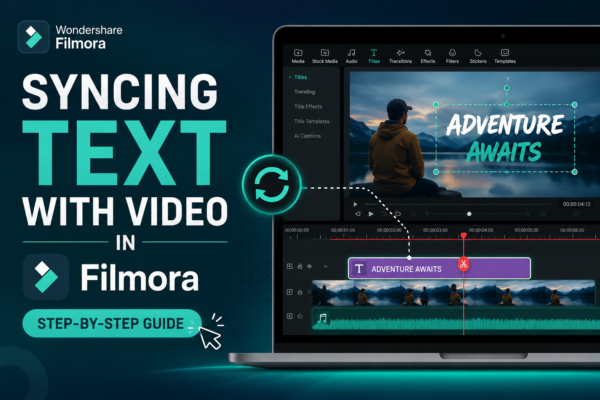
In this guide, you’ll learn how to syncing text with video in Filmora, along with practical tips, real examples, and expert insights to make your edits stand out.
✅ Quick Answer
To sync text with video in Filmora, add a text layer to your timeline, position it above your video clip, and adjust its timing by dragging its edges. Use the preview window to align text with speech, actions, or beats. For precise syncing, zoom into the timeline and use keyframes or markers.
🎬 What Does Syncing Text with Video Mean?
Syncing text with video means aligning on-screen text—like captions, titles, or callouts—with specific moments in your video. This could include:
- Matching subtitles with spoken dialogue
- Displaying text during key actions
- Timing text with music beats
- Highlighting important words visually
This technique is essential for video editing, storytelling, and audience engagement.
🎯 Why Syncing Text Matters in Video Editing
If your text appears too early or too late, it can confuse viewers. Proper syncing improves:
- Viewer retention – Keeps audience engaged
- Clarity – Reinforces spoken content
- Professional quality – Makes videos look polished
- Accessibility – Helps viewers who watch without sound
🛠️ How to Sync Text with Video in Filmora (Step-by-Step)
1. Import Your Media
- Open Filmora
- Import your video clip into the media library
- Drag it onto the timeline
2. Add Text to Your Video
- Go to the Titles tab
- Choose a text style
- Drag it above your video track
3. Adjust Text Duration
- Click on the text layer
- Drag its edges to match the timing of your video
- Make it appear exactly when needed
4. Use the Preview Window
- Play your video
- Pause at the exact moment you want the text
- Adjust the text layer accordingly
5. Zoom Into Timeline for Precision
- Use the timeline zoom slider
- Fine-tune the start and end of your text
- This is crucial for syncing with speech or beats
6. Add Keyframes (Advanced)
- Open the text editing panel
- Enable keyframes
- Animate text appearance for better timing
Also you can read our complete guide on adding keyframes https://youtubevideoeditingservices.com/using-keyframes-in-filmora-motion-guide/
💡 Pro Tips for Perfect Text Syncing
✔ Use Audio Waveforms
- Enable waveform view
- Align text with peaks (dialogue or beats)
✔ Break Text into Small Segments
Instead of one long text:
- Split into shorter chunks
- Sync each part individually
✔ Match Text with Emotion
- Fast scenes → quick text transitions
- Slow scenes → longer text duration
✔ Use Snap Tool
- Helps align text layers perfectly
- Prevents timing gaps
📌 Real-World Example
Let’s say you’re editing a YouTube tutorial:
- Speaker says: “Click the export button”
- You add text: “Click Export”
- Sync it exactly when the word “export” is spoken
This reinforces the message and improves viewer understanding.
⚖️ Manual vs Auto Syncing: Which is Better?
| Feature | Manual Sync | Auto Sync |
|---|---|---|
| Accuracy | High | Medium |
| Control | Full | Limited |
| Speed | Slower | Faster |
| Best For | Professionals | Beginners |
👉 Recommendation: Start with auto tools, but switch to manual syncing for better precision.
🚀 Use Cases for Syncing Text in Filmora
🎥 YouTube Videos
- Add engaging subtitles
- Highlight key points
📱 Social Media Content
- Sync text with trending audio
- Create viral reels
🎓 Educational Videos
- Display important terms
- Reinforce learning
🛍️ Marketing Videos
- Highlight offers
- Sync with product features
❓ Frequently Asked Questions (FAQ)
1. How do I sync subtitles automatically in Filmora?
Filmora offers an Auto Subtitle feature:
- Go to Titles → Auto Subtitle
- Select language
- Let Filmora generate captions
- Adjust timing manually if needed
2. Why is my text not syncing properly?
Common reasons:
- Incorrect timeline placement
- Not zooming in for precision
- Ignoring audio cues
3. Can I sync text with music beats in Filmora?
Yes. To do this:
- Enable audio waveform
- Identify beat peaks
- Align text start/end points with beats
4. Is syncing text in Filmora beginner-friendly?
Absolutely. Filmora is designed for beginners with:
- Drag-and-drop interface
- Easy timeline controls
- Built-in text presets
5. What’s the best way to improve text timing accuracy?
Use these methods:
- Zoom timeline fully
- Play/pause frequently
- Use markers for reference points
🧠 Expert Insight
Professional editors often spend extra time on text timing because it directly impacts viewer experience. Even a 0.5-second delay can feel “off.” The key is to edit with intention—always ask: Does this text appear exactly when the viewer needs it?
🎯 Final Thoughts
Syncing text with video in Filmora is more than just a technical step—it’s a storytelling tool. When done right, it enhances clarity, boosts engagement, and makes your content feel truly professional.
Start simple. Practice with short clips. And as you get comfortable, experiment with animations, keyframes, and creative timing.
👉 Your next step: Open Filmora, import a clip, and try syncing your first text overlay today. The difference in quality will surprise you.











