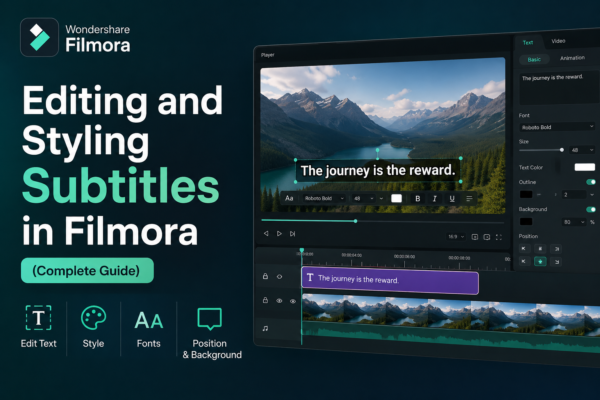
Subtitles are no longer just an accessibility feature—they’re a powerful storytelling tool. Whether you’re creating YouTube videos, tutorials, or social media content, well-designed subtitles can dramatically boost engagement and retention.
If you’ve ever watched a video on mute and still understood everything, you already know the power of subtitles.
In this guide, you’ll learn how to edit and style subtitles in Filmora like a pro—making your content not just readable, but visually compelling.
✅ Quick Answer
Editing and styling subtitles in Filmora involves adding subtitle text, customizing fonts, colors, size, and animations, and syncing them with your video. Use the Text panel to edit subtitles, apply presets, and adjust timing. For best results, keep subtitles readable, consistent, and aligned with your brand style.
🎬 What is Subtitle Editing in Filmora?
Subtitle editing in Filmora refers to modifying the text, timing, and appearance of subtitles within your video. It includes:
- Adjusting text content and timing
- Changing font, color, and size
- Adding animations and effects
- Improving readability and visual appeal
This process ensures your subtitles are both functional and engaging.
🚀 Why Styling Subtitles Matters
Let’s be honest—plain subtitles can feel boring. Styled subtitles, on the other hand, can:
- Capture attention instantly
- Improve viewer retention
- Reinforce branding
- Enhance storytelling
Real-World Example:
Think about popular YouTube creators—many use bold, animated subtitles to emphasize emotions or key points. That’s not random—it’s strategy.
🛠️ How to Edit Subtitles in Filmora (Step-by-Step)
1. Add Subtitles to Your Timeline
- Open Filmora
- Go to the Titles tab
- Drag a subtitle template to the timeline
2. Edit Subtitle Text
- Double-click the subtitle clip
- Enter your text in the editing panel
- Adjust timing to match speech
3. Sync Subtitles with Audio
- Zoom into the timeline
- Align subtitle clips with spoken words
- Use frame-by-frame adjustments for precision
4. Split and Organize Subtitles
- Break long sentences into shorter lines
- Keep each subtitle readable within 1–2 seconds
🎨 How to Style Subtitles in Filmora
Styling is where the magic happens. Here’s how to make your subtitles stand out:
✍️ Customize Font and Size
- Choose clean, readable fonts (e.g., Sans-serif)
- Keep font size large enough for mobile viewers
🎨 Change Colors and Background
- Use high-contrast colors (e.g., white text on dark background)
- Add background boxes for better visibility
✨ Add Text Effects and Animations
- Apply fade-in or slide animations
- Use motion effects for emphasis
🔤 Use Bold and Highlighting
- Highlight keywords to draw attention
- Use different colors for emphasis
💡 Best Practices for Subtitle Styling
Keep It Readable
- Avoid overly decorative fonts
- Maintain strong contrast
Stay Consistent
- Use the same style throughout the video
- Match your brand colors
Optimize for Mobile
- Most viewers watch on phones
- Use large fonts and simple designs
Limit Text Per Line
- 6–10 words per line is ideal
- Avoid clutter
⚖️ Styled vs. Plain Subtitles (Comparison)
| Feature | Plain Subtitles | Styled Subtitles |
|---|---|---|
| Readability | Basic | High |
| Engagement | Low | High |
| Branding | None | Strong |
| Visual Appeal | Minimal | Professional |
👉 Conclusion: Styled subtitles always outperform plain ones in modern video content.
🎯 Use Cases for Styled Subtitles
- YouTube Videos: Boost watch time
- Instagram Reels/TikTok: Capture attention instantly
- Online Courses: Improve learning clarity
- Marketing Videos: Reinforce messaging
❓ FAQ Section
1. How do I edit subtitles in Filmora?
You can edit subtitles by double-clicking the text clip in the timeline, modifying the text, and adjusting timing in the editing panel.
2. What is the best font for subtitles?
Sans-serif fonts like Arial or Open Sans are best because they are clean and easy to read on all devices.
3. How can I make subtitles more attractive?
Use:
- Bold text for emphasis
- High-contrast colors
- Subtle animations
4. Can I animate subtitles in Filmora?
Yes, Filmora offers built-in animation presets like fade, slide, and zoom for subtitle styling.
5. Why are subtitles important for videos?
Subtitles:
- Improve accessibility
- Increase engagement
- Help viewers watch without sound
🧠 Expert Tips
From a professional editing perspective:
- Always preview subtitles on different screen sizes
- Avoid overusing animations—it can distract viewers
- Use subtitle templates to save time and maintain consistency
🏁 Conclusion
Editing and styling subtitles in Filmora isn’t just about adding text—it’s about enhancing your video’s impact.
With the right combination of clarity, design, and timing, your subtitles can:
- Keep viewers hooked
- Strengthen your message
- Elevate your content quality
If you’re serious about video creation, mastering subtitle styling is not optional—it’s essential.
👉 Start experimenting with Filmora today and turn your subtitles into a powerful visual storytelling tool.











