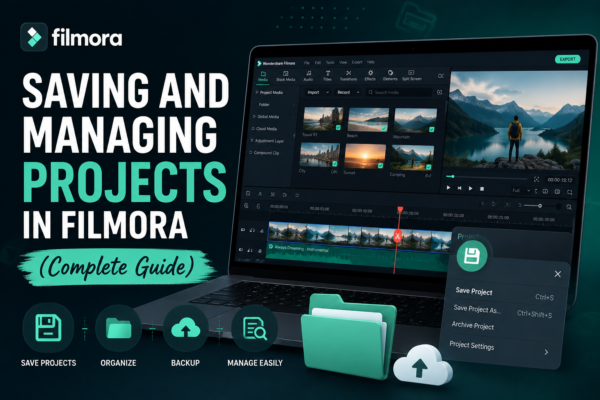
Video editing is exciting—until you lose your project or can’t find your files. If you’ve ever spent hours editing only to face a missing file error, you know how frustrating that can be.
That’s where smart project saving and management in Wondershare Filmora https://filmora.wondershare.com/ becomes essential.
In this guide, you’ll learn exactly how to save, organize, back up, and manage your Filmora projects like a pro—so your workflow stays smooth and stress-free.
✅ Quick Answer
To save and manage projects in Filmora, use File > Save Project or press Ctrl+S, store files in organized folders, and enable auto-save for safety. Use Archive Project to bundle files, rename projects clearly, and back up your work to cloud storage or external drives to prevent data loss.
🎬 What Is a Filmora Project File?
A Filmora project file (with extension .wfp) is not your final video—it’s more like a blueprint.
It contains:
- Timeline edits
- Effects and transitions
- References to media files (videos, images, audio)
👉 Important: If you move or delete original media files, your project may break.
💾 How to Save a Project in Filmora
1: Manual Save
- Go to File > Save Project
- Or press Ctrl + S (Windows) / Cmd + S (Mac)
2: Save As (Best Practice)
- Use File > Save Project As
- Create different versions like:
- project_v1.wfp
- project_final.wfp
3: Auto Save Feature
Filmora automatically saves your work at intervals.
To enable/check:
- Go to File > Preferences > Performance
- Turn on Auto Save
👉 This is your safety net during crashes or power outages.
📂 How to Organize Filmora Projects (Avoid Chaos)
Messy folders = broken projects.
🧠 Smart Folder Structure
Create a system like this:
Filmora Projects/
   ├── YouTube Videos/
   │      ├── Project 1/
   │      │      ├── Media/
   │      │      ├── Exports/
   │      │      └── Project Files/
🧩 Naming Tips
- Use clear names: travel-vlog-lahore.wfp
- Avoid generic names like final_final2.wfp
- Add dates if needed: 2026-social-ad.wfp
📦 What Is “Archive Project” in Filmora?
This is one of the most powerful—but overlooked—features.
What It Does:
- Collects all media files + project file into one folder
How to Use:
- Go to File > Archive Project
- Choose a location
- Filmora creates a complete package
Why It Matters:
- Prevents missing file errors
- Makes it easy to transfer projects
- Perfect for backups or sharing with clients
🔄 Saving vs Exporting: What’s the Difference?
| Feature | Saving Project | Exporting Video |
|---|---|---|
| File Type | .wfp | MP4, MOV, etc. |
| Purpose | Continue editing later | Final video output |
| Editable | Yes | No |
| Size | Small | Larger |
👉 Always save first, then export.
☁️ Best Backup Strategies (Avoid Losing Work)
Even professionals lose data—it’s about minimizing risk.
1. Use Cloud Storage
Platforms like:
- Google Drive
- Dropbox
2. External Hard Drives
Keep a physical backup of:
- Project files
- Media assets
3. Version Control
Save multiple versions:
- v1, v2, v3
- Before major edits
⚙️ Best Practices for Managing Filmora Projects
✅ Do This:
- Save frequently (Ctrl + S habit)
- Use “Save As” for versions
- Archive completed projects
- Keep media files in one place
❌ Avoid This:
- Moving files after importing
- Editing directly from USB drives
- Using random file names
- Ignoring auto-save settings
🎯 Real-World Example (Relatable Scenario)
Imagine you’re editing a wedding video:
- You import clips from different folders
- Edit for 5 hours
- Then move files to “clean up space”
👉 Result? Filmora shows “Media Offline” errors.
Now compare with proper workflow:
- All files in one project folder
- Regular saves + archive project
- Backup to cloud
👉 Result? Smooth editing, zero stress.
🔍 Common Issues & Fixes
❓ Why is my Filmora project missing files?
Cause: Original media moved/deleted
Fix: Re-link files manually or use archived project
❓ Where are Filmora auto-saved files?
- Check:
- Documents > Wondershare Filmora > Auto Save
❓ Can I recover a deleted project?
- Try:
- Recycle Bin
- Auto-save backup folder
🧠 Pro Tips (Advanced Workflow)
🚀 1. Use Proxy Files (for heavy editing)
- Improves performance
- Keeps projects smooth
🚀 2. Label Your Timeline
- Use colors and markers for organization
🚀 3. Keep Exports Separate
- Store final videos in a different folder
❓ FAQ Section
1. How do I save a Filmora project properly?
Use Ctrl + S regularly, enable auto-save, and store your project in a dedicated folder with all media files.
2. What is a .wfp file in Filmora?
It’s a project file that stores your editing timeline, effects, and references—but not the actual media files.
3. How can I avoid losing my Filmora project?
- Enable auto-save
- Use cloud backups
- Archive your project
4. Can I open Filmora projects on another computer?
Yes, but you must transfer all media files or use the Archive Project feature.
5. What is the difference between saving and exporting in Filmora?
Saving keeps your editable project, while exporting creates a final video file like MP4.
🏁 Conclusion (Actionable Wrap-Up)
Saving and managing projects in Filmora isn’t just a technical step—it’s your safety system.
A few smart habits can save you hours (or days) of frustration:
- Save often
- Organize files
- Use archive feature
- Back up everything
Start treating your projects like valuable assets—not temporary files.
👉 Next step: Open Filmora and organize your current project properly—you’ll thank yourself later.











