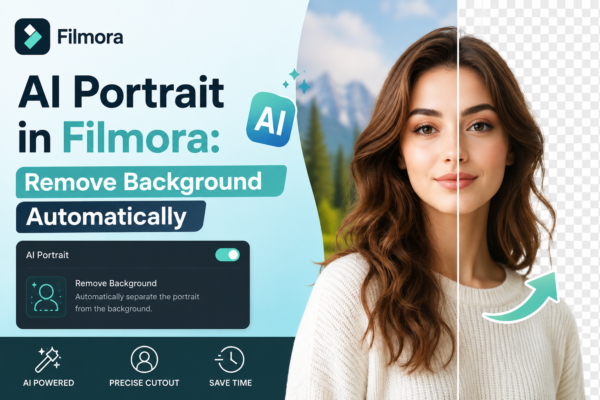
Creating professional-looking videos used to require green screens, expensive setups, and hours of manual editing. But now, tools like AI Portrait in Wondershare Filmora have completely changed the game.
If you’ve ever struggled to remove a background cleanly or wanted to create eye-catching content fast, this guide will walk you through everything—step by step.
Quick Answer
AI Portrait in Filmora allows you to automatically remove the background from videos without using a green screen. Simply import your clip, apply the AI Portrait effect, and Filmora detects and isolates the subject using AI. You can then replace the background, add effects, or create professional edits in minutes.
What is AI Portrait in Filmora?
AI Portrait is an advanced feature in Filmora that uses artificial intelligence (AI) to detect human subjects in a video and remove the background automatically.
Unlike traditional chroma key (green screen) editing, this tool works with any background, making it ideal for beginners and professionals alike.
Key Features:
- No green screen required
- Real-time background removal
- Edge detection with high accuracy
- Built-in effects and overlays
- Works with motion and dynamic scenes
Why Use AI Background Removal?
Let’s be honest—manual background removal is tedious.
Here’s why AI Portrait is a smarter choice:
1. Saves Time
What used to take hours can now be done in seconds.
2. Beginner-Friendly
No technical skills required—just drag and drop.
3. Professional Results
Clean edges and smooth subject isolation.
4. Creative Freedom
Replace backgrounds, add animations, or create cinematic scenes.
How to Remove Background Automatically in Filmora (Step-by-Step)
1: Import Your Video
- Open Filmora
- Click Import Media
- Drag your video into the timeline
2: Access AI Portrait
- Go to Effects
- Search for AI Portrait
- Choose Human Segmentation
3: Apply the Effect
- Drag the AI Portrait effect onto your clip
- Filmora will instantly detect the subject
4: Refine the Output
- Adjust edge smoothness
- Fix minor detection issues
- Enhance subject clarity
5: Add a New Background
- Import your desired background (image/video)
- Place it under your main clip in the timeline
6: Export Your Video
- Click Export
- Choose format (MP4 recommended)
- Adjust resolution (1080p or 4K)
Real-World Use Cases
AI Portrait isn’t just a fancy feature—it’s incredibly practical.
1. YouTube Content Creation
Replace messy room backgrounds with clean, aesthetic visuals.
2. Social Media Videos
Create viral TikTok or Instagram content with dynamic backgrounds.
3. Online Courses
Remove distractions and maintain a professional look.
4. Marketing Videos
Place yourself in branded environments without expensive setups.
AI Portrait vs Green Screen: Which is Better?
| Feature | AI Portrait | Green Screen |
|---|---|---|
| Setup Required | None | Requires equipment |
| Ease of Use | Very easy | Moderate |
| Accuracy | High (AI-based) | Very high (controlled) |
| Cost | Built-in | Additional cost |
| Flexibility | Works anywhere | Limited to green screen setup |
Verdict:
- Use AI Portrait for speed and convenience
- Use green screen for studio-level precision
Best Practices for Better Results
Even though AI does most of the work, these tips can improve your output:
Use Good Lighting
Clear lighting helps AI detect edges more accurately.
Avoid Busy Backgrounds
Simple backgrounds improve detection quality.
Wear Contrasting Colors
Avoid blending with the background.
Keep Movement Smooth
Fast motion can confuse AI detection.
Common Mistakes to Avoid
- Using low-resolution footage
- Poor lighting conditions
- Overlapping objects with the subject
- Ignoring edge refinement settings
Pro Tips from Experts
- Combine AI Portrait with motion tracking for advanced edits
- Add blur or depth effects for cinematic feel
- Use color grading to match subject and background
- Layer multiple effects for unique visuals
Frequently Asked Questions (FAQs)
1. What is AI Portrait in Filmora?
AI Portrait is a feature that automatically removes backgrounds from videos using artificial intelligence without needing a green screen.
2. Does AI Portrait work on all videos?
It works best with videos that have clear subjects and good lighting. Complex backgrounds may reduce accuracy slightly.
3. Is AI background removal free in Filmora?
Some AI Portrait features may require a premium version, depending on your Filmora plan.
4. Can I replace the background after removal?
Yes, you can add images, videos, or animated backgrounds easily in the timeline.
5. Is AI Portrait better than green screen?
For quick edits and convenience, yes. For studio-quality precision, green screen still has an edge.
Conclusion: Edit Smarter, Not Harder
AI Portrait in Filmora is more than just a feature—it’s a productivity boost for creators. Whether you’re a beginner making your first video or a professional editor looking to save time, this tool helps you achieve polished results effortlessly.
The best part? You don’t need expensive gear or technical expertise.
Start experimenting with AI Portrait today and turn ordinary videos into visually stunning content—faster than ever.











