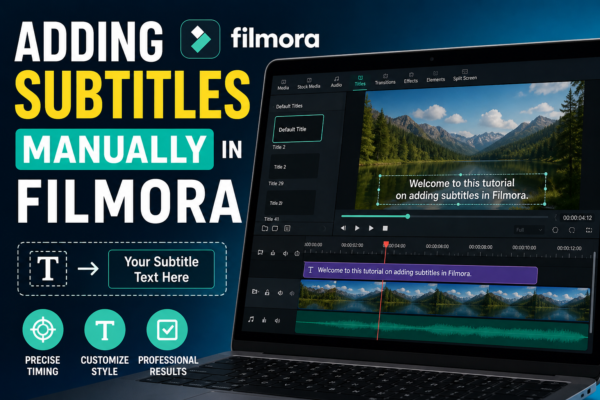
Adding subtitles manually in Filmora is done by opening the Text tool, creating title clips, and syncing them with your video timeline. You can type each subtitle line, adjust timing, and customize fonts, colors, and positioning. This method gives full control over accuracy, style, and readability for professional-quality videos.
Introduction
In today’s digital world, subtitles are no longer optional—they are essential. Whether you’re creating YouTube videos, tutorials, or marketing content, subtitles improve accessibility, engagement, and watch time.
Many creators using Filmora prefer automatic captioning, but manual subtitle creation still remains the most accurate and professional method. Why? Because it gives you full control over timing, wording, and style.
In this guide, you’ll learn how to add subtitles manually in Filmora, along with expert tips, SEO strategies, and real-world workflow insights used by professional editors.
What Does Adding Subtitles Manually in Filmora Mean?
Adding subtitles manually in Filmora means inserting text elements one by one into the timeline and syncing them with spoken dialogue or audio.
Instead of relying on auto-generated captions, you:
- Type subtitles yourself
- Place them on the timeline manually
- Adjust timing frame by frame
- Customize style for branding or readability
This method is widely used in professional video editing because it ensures 100% accuracy and better visual control.
Why Manual Subtitles Matter (Expert Insight)
Even though AI tools are fast, manual subtitles remain important for several reasons:
✔ Higher Accuracy
Auto captions often misinterpret accents, names, or technical terms.
✔ Better SEO Control
You can strategically include keywords in subtitles for YouTube SEO.
✔ Branding Consistency
Manual styling ensures your subtitles match your brand identity.
✔ Improved Accessibility
Clear, well-timed subtitles improve viewer retention and comprehension.
Step-by-Step Guide: How to Add Subtitles Manually in Filmora
H2: Step 1 – Import Your Video
- Open Filmora
- Click New Project
- Import your video file
- Drag it onto the timeline
👉 This is your base editing workspace.
H2: Step 2 – Open the Text Tool
- Go to the Titles section
- Choose Default Titles
- Select a simple text template
Filmora provides multiple subtitle styles, but for manual subtitles, simple text is best.
H2: Step 3 – Add Your First Subtitle
- Drag the text layer above your video track
- Double-click to edit text
- Type your subtitle line
Example:
“Welcome to this tutorial on Filmora editing.”
H2: Step 4 – Sync Subtitles with Audio
This is the most important step.
- Play your video
- Match subtitle start time with speech
- Adjust duration by dragging edges of text clip
💡 Pro Tip: Zoom into the timeline for frame-level precision.
H2: Step 5 – Style Your Subtitles
Make subtitles easy to read:
- Font: Arial / Roboto / Open Sans
- Size: Medium-large (for mobile viewers)
- Color: White with black outline
- Position: Bottom center
Good subtitles should be:
- Clear
- Non-intrusive
- Consistent
H2: Step 6 – Repeat for All Dialogue
Continue adding subtitles line-by-line:
- Create a new text clip for each sentence
- Keep timing consistent
- Avoid overlapping text
This is the core of adding subtitles manually in Filmora.
H2: Step 7 – Export Your Video
Once finished:
- Click Export
- Choose MP4 (recommended)
- Select resolution (1080p or 4K)
- Save your video
Best Practices for Manual Subtitles in Filmora
✔ Keep It Short
Subtitles should be 1–2 lines maximum.
✔ Match Speech Speed
Don’t let subtitles stay too long or disappear too quickly.
✔ Use High Contrast
White text with dark outline improves readability.
✔ Maintain Consistency
Use the same font and size throughout the video.
✔ Avoid Clutter
Too many effects reduce professionalism.
Common Mistakes to Avoid
Even experienced editors make these errors:
❌ Overcrowding subtitles
❌ Wrong timing sync
❌ Fancy fonts that are hard to read
❌ Missing punctuation
❌ Inconsistent positioning
Avoiding these mistakes improves video quality instantly.
Use Cases of Manual Subtitles in Filmora
Manual subtitles are widely used in:
🎥 YouTube Content Creation
Improves watch time and global reach
📚 Online Courses
Helps students understand complex topics
📢 Marketing Videos
Boosts engagement and conversion rates
🌍 Multilingual Content
Supports translation and localization
Manual vs Auto Subtitles in Filmora
| Feature | Manual Subtitles | Auto Subtitles |
|---|---|---|
| Accuracy | High | Medium |
| Speed | Slow | Fast |
| Control | Full | Limited |
| SEO Optimization | Strong | Weak |
| Effort | High | Low |
👉 Manual subtitles win when quality matters most.
SEO Benefits of Adding Subtitles Manually in Filmora
Using adding subtitles manually in Filmora strategy improves:
- YouTube ranking
- Audience retention
- Watch time
- Keyword visibility
Search engines also use subtitles for indexing video content, making them essential for SEO success.
Expert Tip (Pro Workflow)
Professional editors often:
- Write script first
- Break script into subtitle chunks
- Add subtitles while watching playback at 0.75x speed
- Use keyboard shortcuts for faster editing
This workflow saves time and improves precision.
Internal & External Linking Suggestions
Internal Links (Your Blog/Website)
- Filmora text editing guide
- How to export videos in Filmora
- Best Filmora effects for beginners
External Authority References
- https://filmora.wondershare.com (Official Filmora documentation)
- https://support.google.com/youtube (YouTube subtitle guidelines)
Frequently Asked Questions (FAQ)
1. How do I add subtitles manually in Filmora?
You can add subtitles by using the Text tool, typing captions, and syncing them with the video timeline.
2. Is manual subtitle creation better than auto captions?
Yes, manual subtitles are more accurate and offer full control over timing, style, and wording.
3. Can I edit subtitles after adding them in Filmora?
Yes, you can click on any text layer in the timeline and modify it anytime.
4. Does Filmora support subtitle styling?
Yes, Filmora allows customization of font, color, size, animation, and position.
5. Why are subtitles important for video SEO?
Subtitles help search engines understand video content, improving indexing and ranking.
Conclusion
Learning adding subtitles manually in Filmora is a powerful skill for any video creator. While it takes more time than automatic tools, it gives unmatched accuracy, creativity, and SEO advantages.
If you’re serious about producing professional videos, manual subtitles should be part of your editing workflow. They not only enhance viewer experience but also improve your content’s discoverability across platforms like YouTube and Google.
Start practicing today, and your videos will instantly feel more polished, accessible, and engaging.











