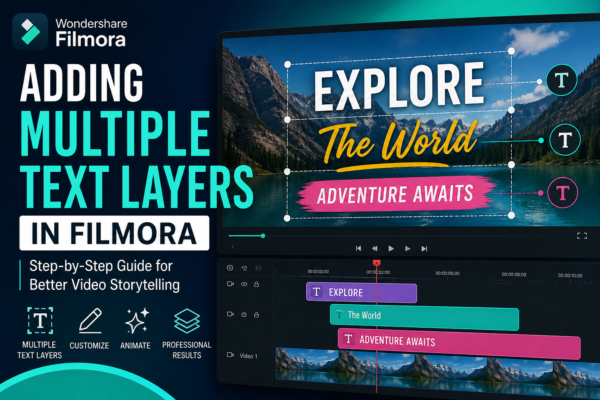
If you’ve ever watched a YouTube video, TikTok edit, or Instagram reel with animated titles, captions, and overlays appearing at different moments, you’ve already seen the power of multiple text layers in action.
In modern video editing, especially using tools like Filmora, text is no longer just a subtitle—it’s a storytelling tool.
But here’s the challenge most beginners face:
“How do I add multiple text layers in Filmora without everything overlapping or getting messy?”
This guide solves that problem step-by-step. You’ll learn not only how to add multiple text layers but also how to use them like a professional editor for better engagement, branding, and storytelling.
Quick Answer
Adding multiple text layers in Filmora is done by placing different text elements on separate timeline tracks. You can create multiple titles, adjust their timing, and position them individually on the preview screen. This allows captions, headings, and animations to appear simultaneously or at different moments in your video.
What Are Multiple Text Layers in Filmora?
Multiple text layers refer to using more than one text element (titles, captions, labels, or animations) stacked or arranged across different tracks in the timeline.
Each layer can contain:
- Different fonts
- Separate animations
- Unique positions on the screen
- Individual timing and duration
Example:
Imagine a YouTube tutorial video:
- Top text: Video title
- Middle text: Step instructions
- Bottom text: Subtitles
All three appear independently using multiple text layers.
Why Adding Multiple Text Layers Matters
Using multiple text layers in Filmora is not just a design trick—it’s a storytelling strategy.
Benefits:
- Improves viewer engagement
- Helps organize information visually
- Enhances branding consistency
- Makes tutorials and explainer videos clearer
- Boosts watch time on social platforms
Real-world use case:
A cooking video can show:
- Recipe name (top layer)
- Ingredients list (side layer)
- Step-by-step instructions (bottom layer)
This structure keeps viewers focused and reduces confusion.
How to Add Multiple Text Layers in Filmora (Step-by-Step)
Here’s the practical workflow to create professional-looking layered text in Filmora.
Import Your Video
- Open Filmora
- Click “New Project”
- Import your video file
- Drag it to the timeline
Add Your First Text Layer
- Go to the “Titles” tab
- Choose a text template
- Drag it above your video track
- Double-click to edit text content
Add Additional Text Layers
Now comes the key part:
- Go back to the “Titles” section
- Select another text style
- Drag it onto a new track above or below the first text layer
- Position it in the timeline where needed
✔ You can repeat this process for as many text layers as you want.
Adjust Timing and Duration
To avoid clutter:
- Shorten or extend each text clip
- Align text with voiceovers or scenes
- Use fade-in and fade-out transitions
Position Each Text Layer
Click each text element and:
- Move it anywhere on the screen
- Resize it
- Align it left, right, center, or custom position
This is where your design becomes professional.
Customize Fonts, Colors, and Animations
To make layers visually distinct:
- Use different font styles
- Apply contrasting colors
- Add animations like “fade,” “slide,” or “bounce”
Pro Tips for Using Multiple Text Layers Effectively
Here are expert-level techniques used by professional editors:
1. Don’t overcrowd the screen
Too many layers at once can confuse viewers.
2. Use hierarchy
- Main title = large font
- Supporting text = medium font
- Extra info = small font
3. Match text with audio
Sync text with voiceovers or beats.
4. Use consistent branding
Stick to 2–3 fonts max across your video.
5. Use motion wisely
Subtle animations improve engagement without distraction.
Common Mistakes to Avoid
Even experienced beginners make these errors:
- Placing all text on one layer
- Using too many fonts
- Overlapping text without spacing
- Ignoring readability on mobile screens
- Adding unnecessary animations
Fixing these instantly improves video quality.
Use Cases of Multiple Text Layers in Filmora
Multiple text layers are widely used in different content styles:
🎬 YouTube Videos
- Titles
- Subtitles
- Call-to-action text
📱 Social Media Reels
- Trending captions
- Hashtags
- Highlight text
🎓 Educational Content
- Step labels
- Key points
- Definitions
💼 Business Videos
- Product names
- Features
- Pricing highlights
Filmora vs Other Editors for Text Layering
| Feature | Filmora | Adobe Premiere Pro | CapCut |
|---|---|---|---|
| Ease of use | ⭐⭐⭐⭐⭐ | ⭐⭐⭐ | ⭐⭐⭐⭐⭐ |
| Text layering | Simple | Advanced | Simple |
| Animation options | Good | Professional | Good |
| Beginner-friendly | Yes | No | Yes |
Filmora is especially popular because it balances simplicity with powerful text editing tools.
Best Practices for SEO-Friendly Video Text
If you’re creating content for YouTube or social media:
- Include keywords in on-screen text
- Keep text readable in 3 seconds or less
- Use large fonts for mobile viewers
- Avoid too much animation on educational content
This improves both user engagement and algorithm performance.
FAQs – Adding Multiple Text Layers in Filmora
1. Can I add unlimited text layers in Filmora?
Yes, you can add multiple text layers depending on your system performance and timeline space.
2. Why are my text layers overlapping in Filmora?
This happens when multiple text elements are placed at the same time position. Adjust timing in the timeline.
3. Can I animate each text layer separately?
Yes, each text layer in Filmora has its own animation settings.
4. Is Filmora good for professional text editing?
Yes, Filmora is widely used by YouTubers and content creators for clean and fast text editing.
5. How do I align multiple text layers properly?
Use the preview window alignment tools and grid guides for accurate positioning.
Conclusion
Learning how to add multiple text layers in Filmora is a game-changer for video creators. It transforms simple videos into engaging visual stories that capture attention instantly.
Whether you’re creating YouTube tutorials, Instagram reels, or business presentations, mastering text layering gives your content a professional edge.
If you’re serious about improving your video editing skills, start experimenting with different text layers today—practice is where creativity becomes powerful.











