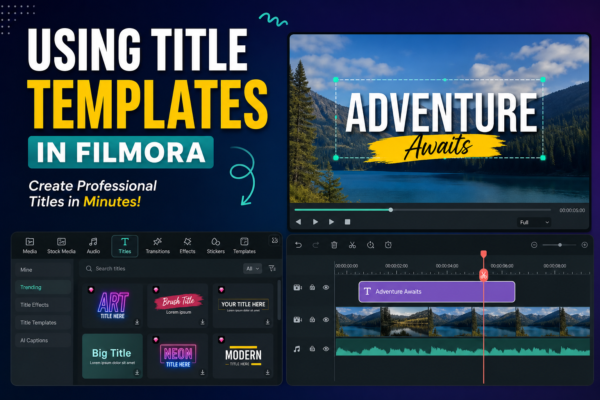
Using title templates in Filmora https://filmora.wondershare.com/allows you to quickly add professional-looking text styles to your videos without manual design work. Simply open the Titles tab, choose a template, drag it to your timeline, and customize text, fonts, and animation. It saves time and improves video quality instantly.
Why Title Templates Matter in Video Editing
In modern video editing, visuals alone are not enough. Clear, engaging, and well-designed text plays a huge role in storytelling. Whether you’re creating YouTube videos, tutorials, business promos, or social media content, titles help grab attention and communicate messages instantly.
This is where using title templates in Filmora becomes a game-changer.
Instead of designing text from scratch, Filmora provides ready-made, customizable templates that make your videos look professional in minutes. Even beginners can create cinematic intros, lower-thirds, subtitles, and animated titles without design skills.
In this guide, you’ll learn everything about using title templates in Filmora, including step-by-step instructions, expert tips, use cases, and SEO-friendly practices for video content.
What Are Title Templates in Filmora?
Title templates in Filmora are pre-designed text animations and layouts that you can apply directly to your video timeline.
They include:
- Animated text effects
- Lower-thirds (name tags, captions)
- Intro/outro titles
- Subtitle styles
- Cinematic typography designs
Instead of manually animating text, you simply drag and drop a template and customize it.
Why they are useful:
- Save editing time
- Maintain visual consistency
- Improve video engagement
- Enhance storytelling quality
How to Use Title Templates in Filmora (Step-by-Step Guide)
Using title templates in Filmora is simple and beginner-friendly. Follow these steps:
Step 1: Open Filmora and Import Your Video
Start by launching Filmora and importing your video clips into the media panel.
Step 2: Go to the Titles Section
On the top menu, click on “Titles”.
Here you will see hundreds of pre-built title templates categorized by style.
Step 3: Browse and Choose a Template
Select a template that matches your video theme:
- Business videos → Clean corporate titles
- YouTube content → Bold animated titles
- Vlogs → Casual and fun text styles
- Tutorials → Lower-third labels
Step 4: Drag and Drop to Timeline
Once selected, drag the template onto your timeline above your video clip.
Step 5: Customize the Text
Double-click the template to edit:
- Text content
- Font style
- Color scheme
- Animation speed
- Position
Step 6: Preview and Adjust
Play your video in preview mode and adjust timing or styling if needed.
Step 7: Export Your Video
Once satisfied, export your video in your preferred resolution.
Best Practices for Using Title Templates in Filmora (Expert Tips)
To get professional results while using title templates in Filmora, follow these expert strategies:
1. Match Titles with Video Mood
- Corporate videos → Minimalist fonts
- Travel videos → Colorful, dynamic animations
- Educational content → Simple readable styles
2. Don’t Overuse Animations
Too many flashy titles can distract viewers. Keep it clean and readable.
3. Maintain Brand Consistency
Use similar fonts and colors across all videos to build brand identity.
4. Adjust Timing Properly
Make sure titles appear long enough for viewers to read comfortably.
5. Use Lower-Third Templates for Professional Look
These are ideal for:
- Speaker names
- Interviews
- Tutorials
Common Use Cases of Title Templates in Filmora
Understanding real-world applications helps you use title templates in Filmora more effectively.
1. YouTube Videos
Creators use title templates for:
- Intros
- Subscribe reminders
- Section headings
2. Business Presentations
Used for:
- Product highlights
- Corporate branding
- Service descriptions
3. Social Media Content
Perfect for:
- Instagram reels captions
- TikTok text overlays
- Facebook ads
4. Educational Videos
Used for:
- Key points
- Definitions
- Step-by-step instructions
Advantages of Using Title Templates in Filmora
Here are the major benefits:
✔ Time-Saving
No need to design text animations manually.
✔ Beginner-Friendly
Even non-editors can create professional videos.
✔ High Visual Quality
Templates are designed by professionals.
✔ Customizable
You can edit fonts, colors, and animations.
✔ Boosts Engagement
Well-designed titles improve viewer retention.
Pros and Cons of Filmora Title Templates
Pros:
- Easy drag-and-drop system
- Large variety of styles
- Suitable for beginners and professionals
- Fully customizable
Cons:
- Some premium templates require paid version
- Limited advanced animation control compared to After Effects
- Overuse can make videos look repetitive
Comparison: Filmora Title Templates vs Manual Text Design
| Feature | Title Templates | Manual Design |
|---|---|---|
| Speed | Fast | Slow |
| Ease of Use | Very Easy | Complex |
| Customization | Moderate | High |
| Professional Look | High | Depends on skill |
👉 Conclusion: For most creators, using title templates in Filmora is the fastest way to achieve professional results.
Related Keywords (SEO Optimization)
- Filmora text templates
- Filmora title effects
- Video editing text animation
- Filmora lower thirds
- Filmora typography tools
- Filmora video titles
FAQs: Using Title Templates in Filmora
1. What are title templates in Filmora?
Title templates are pre-designed animated text styles that you can add to your video to make it more professional and engaging.
2. How do I add title templates in Filmora?
Go to Titles → Choose a template → Drag it to timeline → Edit text → Preview and export.
3. Can I customize Filmora title templates?
Yes, you can change fonts, colors, text, size, animation speed, and positioning.
4. Are Filmora title templates free?
Filmora offers both free and premium title templates depending on the version you are using.
5. Which title templates are best for YouTube videos?
Bold animated titles and lower-thirds are best for YouTube intros, tutorials, and vlogs.
Conclusion: Mastering Title Templates in Filmora
Learning using title templates in Filmora is one of the fastest ways to upgrade your video editing skills. Instead of spending hours designing text animations, you can use ready-made professional templates and focus more on storytelling.
Whether you’re a beginner or a content creator, these templates help you create visually appealing videos that stand out on YouTube, TikTok, and other platforms.
If you want to improve your video editing workflow, start experimenting with different title templates today and build your own unique style.











