Why Whiteboard Animation Works for Courses
Whiteboard animations simplify complex concepts by combining visuals with narration. Additionally, they keep learners engaged through dynamic movement and storytelling. As a result, courses become more memorable because students associate information with visual cues. Moreover, whiteboard animations are versatile, fitting subjects from math tutorials to business strategy lessons. Our services
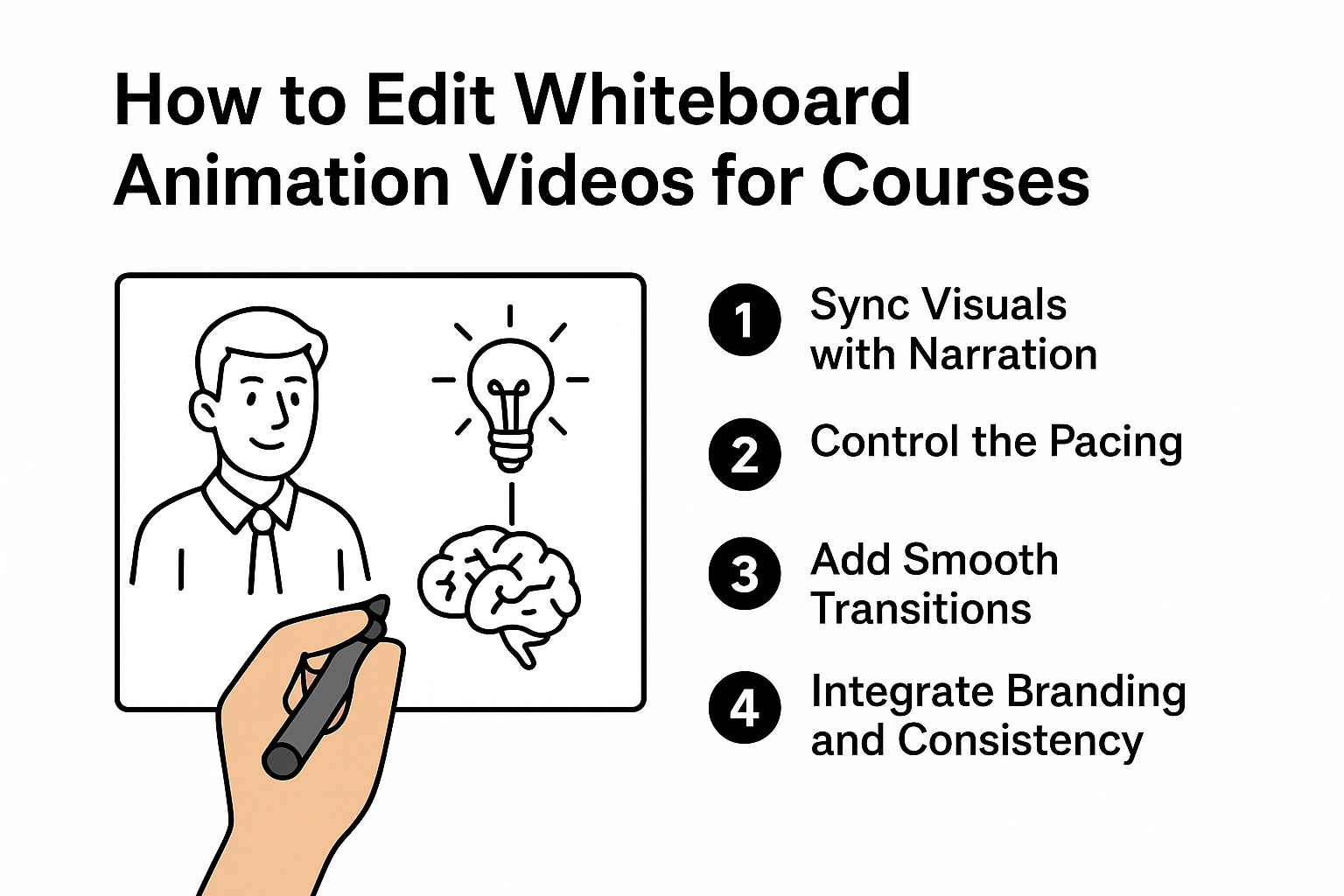
4 Key Editing Techniques for Whiteboard Animations
1. Sync Visuals with Narration
Ensure that drawings or animations appear at the same pace as the spoken explanation. For example, if the instructor is defining a term, display its visual representation simultaneously. This way, students can connect the audio and visuals instantly. https://www.fiverr.com/s/akGkdXG
2. Control the Pacing
Animations that move too fast overwhelm learners. Conversely, overly slow movement reduces engagement. Therefore, strike a balance by adjusting frame duration and animation speed.
3. Add Smooth Transitions
Avoid abrupt cuts between sections. Instead, use fade-ins, hand-drawn wipes, or slide transitions to keep the flow natural. In addition, transitions act as mental breaks for learners, allowing them to process information.
4. Integrate Branding and Consistency
Include your brand logo, color palette, and fonts within the whiteboard animation. By doing this, the course feels cohesive and professional. Furthermore, consistent design across all lessons improves recognition and trust. https://www.fiverr.com/s/dD1D7Az
Step-by-Step Whiteboard Editing Workflow
- Plan the Script and Visual Flow
Outline narration and match each point with a sketch or animation. - Use Editing Software
Tools like VideoScribe, Doodly, or Adobe Animate are ideal for creating and editing animations. - Sync Narration with Animation
Align audio clips with the appearance of illustrations. - Refine Pacing and Transitions
Adjust animation duration, spacing, and movement for a smooth experience. - Finalize Accessibility Features
Add captions, subtitles, or alternative text for visuals to support all learners.
Best Tools for Whiteboard Animation Editing
| Tool | Feature | Cost |
|---|---|---|
| VideoScribe | Easy drag-and-drop whiteboard editing | $39/mo |
| Doodly | Hand-drawn animation maker | $39/mo |
| Adobe Animate | Professional animation editing | $20.99/mo |
| Camtasia | Timeline-based video editing with animations | $299 one-time |
Tip: Select software based on your experience level and the complexity of your course.
Whiteboard Animation Editing Checklist
✅ Narration and visuals are perfectly synced
✅ Pacing is balanced and clear
✅ Transitions are smooth and consistent
✅ Branding elements are integrated
✅ Captions and accessibility features are included
DIY vs. Professional Editing
| Factor | DIY Approach | Professional Service |
|---|---|---|
| Quality | Dependent on skills | Broadcast-quality animations |
| Time | Can be lengthy | Streamlined, faster delivery |
| Tools | Limited functionality | Advanced software suites |
| Branding | Basic consistency | Polished and custom-tailored |
Ultimately, hiring a professional ensures higher-quality results while saving time. However, a DIY approach can work well for smaller projects or budget-conscious creators. About us
Where to Find Whiteboard Animation Editors
Platforms like Fiverr and Upwork feature professionals who:
- Edit whiteboard animations for pacing and clarity
- Sync narration with visuals
- Enhance branding elements
- Deliver ADA-compliant edits
Pro Tip: Request a sample edit or short pilot project to confirm editing style before outsourcing your entire course. Contact us











