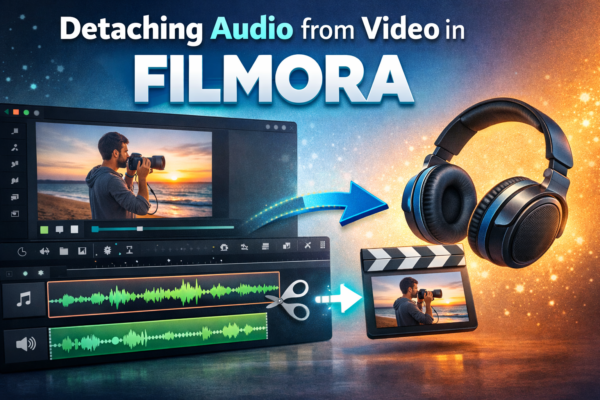
Editing videos without separating audio is like cooking without seasoning—you miss full control. Whether you’re removing background noise, adding voiceovers, or syncing music, detaching audio is a must-have skill. In this guide, you’ll learn how to detach audio from video in Filmora with simple steps, real-world use cases, and expert tips to level up your editing workflow.
You can Learn more about enhancing your videos in our guide on How to Apply Effects in Filmora to specific clips https://youtubevideoeditingservices.com/apply-effects-in-filmora-specific-clips/
⚡ Quick Answer
To detach audio from video in Filmora, import your video, drag it to the timeline, right-click on the clip, and select “Detach Audio.” The audio will separate into a different track, allowing independent editing, deletion, or replacement. This feature is essential for voiceovers, sound corrections, and background music editing.
🎯 What Does “Detaching Audio” Mean?
Detaching audio simply means separating the sound from a video clip so both can be edited independently.
Why it matters:
- Remove unwanted noise
- Replace original audio with music
- Add voiceovers or dubbing
- Sync audio with different visuals
🛠️ How to Detach Audio from Video in Filmora (Step-by-Step)
Follow these easy steps:
1. Import Your Video
- Open Filmora
- Click Import Media
- Select your video file
2. Add Video to Timeline
- Drag the video from media library to the timeline
3. Detach Audio
- Right-click on the video clip
- Click Detach Audio
👉 Instantly, the audio appears as a separate track below the video.
4. Edit Audio Separately
Now you can:
- Delete audio
- Trim or cut
- Adjust volume
- Add effects
💡 Real-World Use Cases
🎙️ 1. Adding Voiceovers
Detach original audio and replace it with your own narration—perfect for tutorials and YouTube videos.
🎵 2. Background Music Replacement
Remove original sound and insert royalty-free music for a professional feel.
🔇 3. Removing Noise
Delete unwanted audio like wind, traffic, or background chatter.
🎥 4. Syncing External Audio
Match high-quality recorded audio with your video footage.
⚖️ Detach Audio vs Mute Audio in Filmora
| Feature | Detach Audio | Mute Audio |
|---|---|---|
| Flexibility | High | Low |
| Editing Control | Full | None |
| Best For | Advanced editing | Quick silence |
| Audio Track | Separate | Stays attached |
👉 Pro Tip: Always use Detach Audio if you plan detailed editing.
🚀 Expert Tips for Better Audio Editing
🎧 1. Use Audio Fade In/Out
Smooth transitions make your video more professional.
🎚️ 2. Normalize Audio Levels
Keep volume consistent across clips.
🎼 3. Add Sound Effects
Enhance storytelling with subtle effects.
🔄 4. Sync with Visual Cues
Align audio beats with scene changes for cinematic impact.
❓ Frequently Asked Questions (FAQ)
1. How do I remove audio completely in Filmora?
- Right-click video → Detach Audio
- Select audio track → Press Delete
2. Can I reattach audio after detaching?
No direct “reattach” option exists. You must manually sync the audio back to the video.
3. Does detaching audio reduce video quality?
No. It only separates audio; video quality remains unchanged.
4. Can I edit audio effects after detaching?
Yes, you can:
- Adjust volume
- Add fade effects
- Apply equalizer presets
5. Is detaching audio available in free Filmora version?
Yes, but exported videos may include a watermark in the free version.
🎯 Final Thoughts
Detaching audio in Filmora is a simple yet powerful feature that unlocks complete creative control. Whether you’re a beginner or a growing content creator, mastering this skill will dramatically improve your video quality.
👉 Start practicing today:
- Remove unwanted sounds
- Add clean voiceovers
- Create professional-level edits
Your content deserves better audio—make it happen. 🎬











