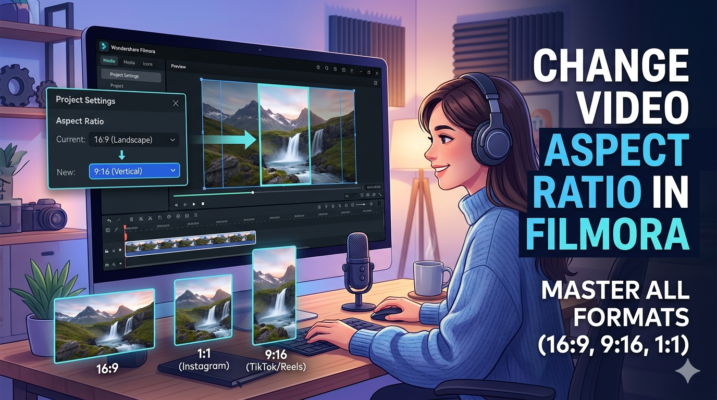
Creating videos for different platforms can be tricky because each platform prefers a different video aspect ratio. For example, YouTube videos usually use 16:9, Instagram posts use 1:1, and TikTok prefers 9:16 vertical videos.
If you’re using Wondershare Filmora, changing the aspect ratio is surprisingly easy. Whether you want to convert a landscape video into a vertical TikTok clip or resize a YouTube video for Instagram, Filmora provides built-in tools that make the process simple—even for beginners.
In this guide, you’ll learn how to change video aspect ratio in Filmora, why it matters, and the best settings for popular social media platforms.
Quick Answer: How to Change Video Aspect Ratio in Filmora
To change the video aspect ratio in Filmora, open your project, click the Project Settings option, and choose the desired aspect ratio such as 16:9, 1:1, 9:16, or 4:3. After selecting the ratio, adjust or crop the video in the preview window to fit the new frame, then export your video.
What is Video Aspect Ratio?
A video aspect ratio is the proportional relationship between the width and height of a video frame.
Common examples include:
- 16:9 – Standard widescreen for YouTube and TV
- 9:16 – Vertical videos for TikTok, Reels, and Shorts
- 1:1 – Square videos for Instagram posts
- 4:3 – Traditional video format used in older content
Choosing the correct ratio ensures your video displays properly without black bars or awkward cropping.
According to video publishing guidelines from platforms like YouTube and Instagram, using the correct format improves viewer engagement and watch time.
Why Changing Aspect Ratio Matters for Content Creators
Many creators record videos in one format but need them in another. For example:
- A YouTube video might need to be repurposed for TikTok Shorts
- A horizontal tutorial might need a square version for Instagram
- Marketing videos may require different formats for multiple platforms
Changing the aspect ratio helps you:
- Optimize content for each platform
- Improve viewer experience
- Increase engagement and visibility
- Repurpose existing videos without re-recording
This is why video editors like Wondershare Filmora include built-in aspect ratio tools.
How to Change Video Aspect Ratio in Filmora (Step-by-Step)
Follow these simple steps to resize your video inside Filmora.
Step 1: Open Filmora and Start a New Project
Launch Wondershare Filmora and create a new project.
You will see the project settings screen where you can choose the aspect ratio before editing.
Popular options include:
- 16:9 (YouTube videos)
- 1:1 (Instagram posts)
- 9:16 (TikTok or Shorts)
- 4:3 (classic format)
Step 2: Import Your Video
Click Import Media and upload the video you want to edit.
Drag the clip to the timeline to begin editing.
Filmora may ask whether you want to match project settings with the clip resolution. Choose according to your desired output format.
Step 3: Change the Project Aspect Ratio
To modify the ratio after importing:
- Go to File
- Click Project Settings
- Select your desired Aspect Ratio
Examples:
- Choose 16:9 for YouTube
- Choose 9:16 for TikTok
- Choose 1:1 for Instagram
Filmora will instantly resize the preview window.
Step 4: Adjust or Crop the Video
After changing the aspect ratio, parts of the video may not fit perfectly.
To fix this:
- Click the video clip on the timeline
- Use Crop and Zoom
- Reposition the frame to keep the important subject visible
This ensures your video looks professional without cutting off key elements.
Step 5: Export the Final Video
Once everything looks good:
- Click Export
- Choose the desired format (MP4 is recommended)
- Select resolution and frame rate
- Export the video
Your video will now match the selected aspect ratio.
Best Aspect Ratios for Different Platforms
Understanding platform requirements helps creators maximize engagement.
| Platform | Recommended Aspect Ratio |
|---|---|
| YouTube | 16:9 |
| TikTok | 9:16 |
| Instagram Feed | 1:1 |
| Instagram Reels | 9:16 |
| Facebook Video | 16:9 or 1:1 |
| YouTube Shorts | 9:16 |
Choosing the correct format ensures your video fills the screen and looks professional.
For official guidelines, you can check:
- YouTube Help Center
- Instagram Creator Studio
These platforms regularly publish recommended video specifications.
Pro Tips for Changing Aspect Ratio in Filmora
Professional editors follow a few best practices when resizing videos.
1. Record with Extra Space
If possible, record videos with extra room around the subject. This makes cropping easier when converting from horizontal to vertical.
2. Keep Important Content in the Center
Most aspect ratio changes crop the sides or top of the video. Keeping the main subject centered prevents important elements from being cut.
3. Use Filmora’s Auto Reframe Feature
Filmora includes Auto Reframe, which automatically adjusts the frame when converting aspect ratios. This feature is especially useful for:
- Sports videos
- Moving subjects
- Vlogs
4. Maintain High Resolution
When exporting, choose at least:
- 1080p for YouTube
- 720p or 1080p for social media
Higher resolution keeps your video sharp after cropping.
Filmora vs Other Video Editors for Aspect Ratio Editing
Many video editing tools allow aspect ratio changes, but Filmora remains popular among beginners.
| Feature | Filmora | Premiere Pro | CapCut |
|---|---|---|---|
| Beginner Friendly | Yes | Moderate | Yes |
| Auto Reframe | Yes | Yes | Limited |
| Quick Aspect Ratio Presets | Yes | Manual Setup | Yes |
| Learning Curve | Easy | Advanced | Easy |
For beginners and content creators, Filmora provides the fastest workflow for resizing videos.
Common Problems When Changing Video Aspect Ratio
Here are a few issues creators often face.
Black Bars Appearing
This happens when the video doesn’t match the selected ratio.
Solution: Crop or zoom the video.
Important Parts of Video Get Cut
This usually occurs when converting landscape to vertical.
Solution: Reposition the video using crop tools.
Video Quality Drops After Export
Low export settings can reduce video quality.
Solution: Export in 1080p with high bitrate.
Use Cases: When You Need to Change Aspect Ratio
Changing aspect ratio is useful in many real-world scenarios.
Social Media Repurposing
Turn one YouTube video into multiple formats:
- TikTok clips
- Instagram Reels
- Facebook posts
Marketing Videos
Businesses often adapt the same video for different platforms such as:
- Ads
- Website banners
- Social media campaigns
Online Courses and Tutorials
Educators may need square or vertical videos for learning platforms or mobile-first content.
FAQ: Changing Video Aspect Ratio in Filmora
How do I change aspect ratio in Filmora?
You can change it by opening Project Settings, selecting the desired ratio (16:9, 1:1, or 9:16), adjusting the video frame, and exporting the final video.
What aspect ratio is best for YouTube?
The best aspect ratio for YouTube is 16:9 widescreen, which is the platform’s standard video format.
Can Filmora convert horizontal videos to vertical?
Yes. Filmora allows you to convert 16:9 horizontal videos into 9:16 vertical format using crop tools or Auto Reframe.
Will changing aspect ratio affect video quality?
If exported correctly with high resolution and bitrate, changing aspect ratio does not significantly reduce video quality.
What is the best aspect ratio for TikTok and Shorts?
The recommended format for TikTok and YouTube Shorts is 9:16 vertical video.
Conclusion
Changing the video aspect ratio in Filmora is an essential skill for modern content creators. With the rise of platforms like TikTok, Instagram Reels, and YouTube Shorts, videos must often be adapted to different formats.
Fortunately, Filmora simplifies the process with easy project settings, crop tools, and Auto Reframe features. By selecting the correct aspect ratio and exporting with the right resolution, you can quickly optimize your videos for any platform.
If you regularly create content for multiple social media platforms, mastering this simple editing technique will help you save time, repurpose content, and reach a wider audience.
Start experimenting with different aspect ratios today and make your videos platform-ready in just a few clicks.











