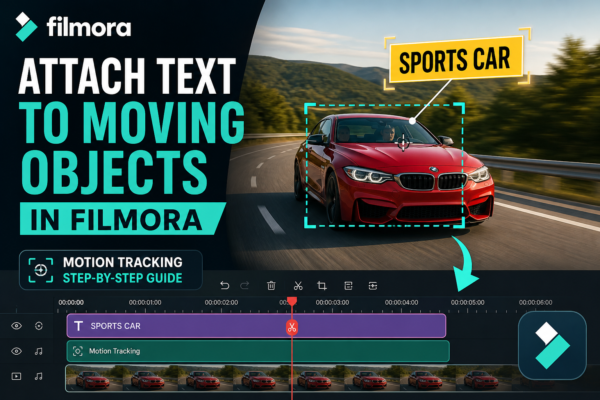
Ever watched a video where text follows a person, car, or product smoothly across the screen—and wondered how it’s done? That effect instantly makes videos feel more professional and engaging.
If you’re using Filmora, the good news is: you don’t need advanced editing skills to achieve this. With built-in motion tracking, you can attach text to moving objects in just a few clicks.
In this guide, I’ll walk you through everything—from basics to pro tips—so you can create polished, attention-grabbing videos.
Quick Answer
To attach text to moving objects in Filmora, use the Motion Tracking feature. Import your video, select the clip, enable motion tracking, draw a tracking box around the object, and start tracking. Then link your text layer to the tracked motion. The text will automatically follow the object throughout the video.
What Is Motion Tracking in Filmora?
Motion tracking in Filmora is a feature that allows you to follow the movement of an object frame by frame and attach elements—like text, images, or graphics—to it.
Why it matters:
- Makes videos more interactive
- Adds professional polish
- Highlights important elements
- Improves viewer engagement
Common use cases:
- Labeling people or products
- Adding captions that follow speakers
- Creating memes or funny edits
- Highlighting moving objects in tutorials
How to Attach Text to Moving Objects in Filmora
Let’s break it down into simple steps.
1: Import Your Video
- Open Filmora
- Click Import Media
- Drag your video into the timeline
2: Enable Motion Tracking
- Select your video clip
- Go to the Video panel
- Find and enable Motion Tracking
3: Draw the Tracking Box
- Place the tracking box over the moving object
- Adjust its size to fit the object precisely
💡 Tip: Keep the box slightly larger than the object to avoid tracking loss.
4: Start Tracking
- Click Start Tracking
- Filmora will automatically follow the object frame by frame
5: Add Text
- Go to Titles
- Choose a text style
- Drag it above your video on the timeline
6: Link Text to Motion Tracking
- Select the tracked clip
- Choose your text layer from the Link Element dropdown
🎉 That’s it! Your text will now follow the moving object smoothly.
Best Practices for Accurate Motion Tracking
Even though Filmora simplifies the process, small adjustments can make a big difference.
1. Choose Clear Objects
Avoid tracking blurry or fast-moving objects without clear edges.
2. Maintain Good Contrast
Tracking works best when the object stands out from the background.
3. Avoid Obstructions
If the object gets blocked or leaves the frame, tracking may fail.
4. Adjust Text Positioning
- Place text slightly above or beside the object
- Avoid covering important visuals
5. Preview Before Export
Always preview the tracking to ensure smooth movement.
Real-World Examples
Let’s make this more relatable.
Example 1: YouTube Vlog
You’re walking and talking—attach your name above your head so viewers can identify you instantly.
Example 2: Product Review
Highlight a moving product with a label like “Best Budget Pick.”
Example 3: Educational Content
Attach text to a moving diagram or object to explain concepts visually.
Motion Tracking vs Manual Keyframing
| Feature | Motion Tracking | Keyframing |
|---|---|---|
| Ease of Use | Very easy | Moderate |
| Time Required | Fast | Time-consuming |
| Accuracy | Automated | Manual control |
| Best For | Beginners & quick edits | Advanced customization |
👉 Pro Tip: Use motion tracking for speed, and keyframes for fine-tuning.
Common Mistakes to Avoid
- ❌ Tracking objects that move too fast
- ❌ Using low-resolution footage
- ❌ Ignoring preview before export
- ❌ Placing text too close to edges
- ❌ Not adjusting tracking box size
Pros and Cons of Using Motion Tracking in Filmora
Pros:
- Beginner-friendly interface
- Fast and automated tracking
- Works with text, images, and graphics
- No advanced skills required
Cons:
- Limited fine control compared to professional tools
- Struggles with complex motion scenes
- May require manual adjustments
Frequently Asked Questions (FAQs)
1. What is motion tracking in Filmora?
Motion tracking is a feature that allows you to follow a moving object and attach elements like text or graphics to it automatically.
2. Can I attach images instead of text?
Yes, Filmora lets you attach images, stickers, or graphics using the same motion tracking feature.
3. Why is my tracking not accurate?
This usually happens due to:
- Low contrast
- Fast movement
- Object leaving the frame
Adjust the tracking box or try a different section.
4. Is motion tracking available in all Filmora versions?
Motion tracking is available in newer versions of Filmora. Make sure your software is updated.
5. Can I edit the text after attaching it?
Yes, you can modify the text style, size, color, and position even after linking it to motion tracking.
Conclusion
Attaching text to moving objects in Filmora is one of those features that looks complex—but becomes incredibly simple once you try it.
With just a few clicks, you can transform ordinary videos into dynamic, professional-looking content. Whether you’re a YouTuber, educator, or social media creator, motion tracking helps your message stand out.
👉 Start experimenting today—pick a clip, track an object, and add text. You’ll be surprised how much more engaging your videos become.











