Ever watched a video that felt… flat? No punch, no emotion, no realism?
That’s usually not a video problem—it’s a sound design problem.
If you’re editing with Filmora and not using its built-in sound effects library, you’re leaving a huge creative advantage on the table. From cinematic transitions to subtle background ambiance, sound effects can completely transform your content.
In this guide, you’ll learn how to use Filmora’s sound effects library effectively, even if you’re a beginner. Plus, I’ll share pro tips, real examples, and practical strategies to make your videos feel alive.
Quick Answer
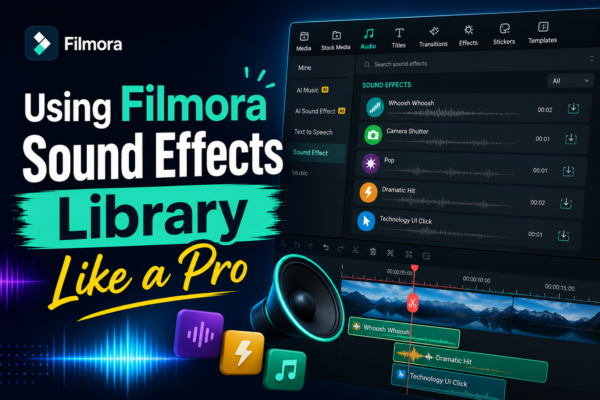
To use Filmora’s sound effects library, open the Audio tab, select “Sound Effects,” browse categories, and drag your desired effect onto the timeline. Adjust volume, timing, and fades to match your visuals. Proper use of sound effects enhances storytelling, improves engagement, and gives your videos a professional feel.
What is Filmora’s Sound Effects Library?
Filmora’s sound effects library is a built-in collection of audio clips designed to enhance video editing. It includes:
- Ambient sounds (rain, wind, city noise)
- Action effects (whooshes, impacts, transitions)
- UI sounds (clicks, notifications)
- Nature and environmental audio
- Cinematic effects
Why It Matters
Sound effects help:
- Add realism to scenes
- Emphasize actions and transitions
- Improve viewer engagement
- Create emotional impact
Without sound design, even high-quality visuals can feel incomplete.
How to Use Filmora’s Sound Effects Library (Step-by-Step)
1: Open the Audio Panel
- Launch Filmora
- Click on the “Audio” tab at the top
- Select “Sound Effects”
2: Browse Categories
Filmora organizes effects into categories like:
- Transition
- Nature
- Technology
- Sports
- Animals
Use the search bar to find specific sounds quickly.
3: Preview Sound Effects
- Click on any sound to preview it
- Make sure it matches your video tone and pacing
4: Drag and Drop to Timeline
- Drag the selected sound effect onto your timeline
- Place it exactly where the action happens
5: Adjust Audio Settings
Fine-tune your sound:
- Volume control
- Fade in/out
- Speed adjustment
- Noise reduction (if needed)
Best Use Cases for Sound Effects in Filmora
1. YouTube Videos
Add:
- Click sounds for transitions
- Whooshes for text animations
2. Vlogs
Use:
- Ambient sounds (street noise, café ambiance)
- Subtle background effects
3. Gaming Content
Enhance:
- Action moments with impact sounds
- UI clicks for menus
4. Cinematic Edits
Layer:
- Deep bass hits
- Atmospheric soundscapes
Pro Tips to Use Filmora Sound Effects Like an Expert
1. Don’t Overuse Effects
Too many sound effects can overwhelm viewers. Keep it balanced.
2. Match Sound with Action
Perfect timing is everything:
- A delayed sound feels unnatural
- A synced sound feels immersive
3. Layer Sounds for Depth
Combine multiple effects:
- Footsteps + ambient wind = realism
4. Adjust Volume Levels Properly
Keep sound effects:
- Lower than dialogue
- Balanced with background music
5. Use Fade Effects
Avoid abrupt starts/stops:
- Use fade-in for smooth entry
- Use fade-out for clean exits
Common Mistakes to Avoid
- ❌ Using random sound effects without context
- ❌ Ignoring volume balance
- ❌ Overlapping too many sounds
- ❌ Using low-quality or mismatched audio
- ❌ Forgetting to preview before exporting
Filmora Sound Effects vs External Libraries
| Feature | Filmora Library | External Libraries |
|---|---|---|
| Ease of Use | Very easy | Moderate |
| Cost | Free (built-in) | Often paid |
| Variety | Good | Extensive |
| Integration | Seamless | Manual import needed |
When to Use Filmora Library
- Quick edits
- Beginner projects
- YouTube videos
When to Use External Libraries
- Professional filmmaking
- Unique sound design needs
- Advanced projects
Frequently Asked Questions (FAQ)
1. How do I access Filmora’s sound effects library?
Go to the Audio tab and click on “Sound Effects.” You’ll find categorized audio clips ready to use.
2. Are Filmora sound effects free to use?
Most built-in effects are free, but some premium assets may require a subscription.
3. Can I import my own sound effects into Filmora?
Yes, you can import external audio files and use them alongside the built-in library.
4. How do I sync sound effects with video actions?
Drag the sound effect to the exact frame where the action occurs and adjust timing manually for precision.
5. What’s the ideal volume level for sound effects?
Keep sound effects lower than dialogue (usually around -20dB to -10dB depending on context).
Final Thoughts
Using Filmora’s sound effects library isn’t just about adding noise—it’s about telling a better story.
When used correctly, sound effects can:
- Make your videos more engaging
- Improve viewer retention
- Add a professional touch without extra cost
If you’re serious about leveling up your video editing skills, start paying attention to sound—not just visuals.
Your next step?
Open Filmora, pick a project, and experiment with 2–3 sound effects. You’ll immediately notice the difference.











