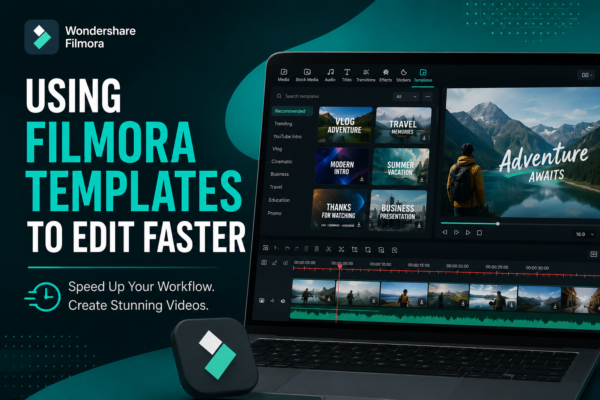
Video editing can feel overwhelming—especially when you’re juggling deadlines, content ideas, and technical settings. If you’ve ever spent hours tweaking transitions or aligning text, you’re not alone.
Here’s the good news: Filmora templates can cut your editing time in half—without sacrificing quality.
In this guide, you’ll learn how to use Filmora templates to edit faster, smarter, and more professionally—whether you’re creating YouTube videos, Instagram reels, or client projects.
Quick Answer
Using Filmora templates to edit faster means applying pre-designed video layouts, transitions, and effects to your project instead of building everything from scratch. Simply choose a template, customize text and media, and export. This workflow saves time, ensures consistency, and helps beginners create professional-looking videos quickly.
What Are Filmora Templates?
Filmora templates are pre-built video designs that include:
- Transitions
- Text animations
- Effects and overlays
- Music and timing presets
Think of them as ready-made video blueprints. Instead of starting with a blank timeline, you start with a structured layout that only needs customization.
Why Templates Matter
Without templates:
- You manually design everything
- Editing takes longer
- Results may look inconsistent
With templates:
- Editing becomes faster
- Your videos look polished
- You can focus on storytelling instead of technical work
Why Use Filmora Templates to Edit Faster?
1. Save Time on Repetitive Tasks
Templates eliminate the need to repeatedly:
- Add transitions
- Animate text
- Sync music
2. Maintain Professional Quality
Even beginners can create high-quality videos using templates designed by professionals.
3. Improve Workflow Efficiency
Templates allow you to:
- Batch-create content
- Maintain consistency across videos
- Meet tight deadlines
4. Perfect for Content Creators
If you’re posting regularly (YouTube, TikTok, Instagram), templates are a game changer.
How to Use Filmora Templates (Step-by-Step)
1: Open Filmora and Start a Project
Launch Filmora and select your project resolution (e.g., 1080p or 4K).
2: Go to the Templates Section
Navigate to:
- Templates tab (or Instant Mode depending on version)
Browse categories like:
- YouTube intros
- Social media videos
- Travel vlogs
- Business promos
3: Choose a Template
Select a template that matches your content style.
💡 Tip: Pick one that requires minimal changes to save even more time.
4: Import Your Media
Add:
- Video clips
- Images
- Audio files
Drag and drop them into the template placeholders.
5: Customize Text and Elements
Edit:
- Titles
- Fonts
- Colors
- Timing
Keep it simple—don’t over-edit or you’ll lose the time advantage.
6: Preview and Adjust
Watch your video:
- Fix timing issues
- Replace clips if needed
7: Export Your Video
Use optimized settings for your platform (YouTube, Instagram, etc.).
Best Practices for Faster Editing with Filmora Templates
Use Templates That Match Your Niche
For example:
- Vlogs → Travel templates
- Tutorials → Clean, minimal templates
- Ads → Dynamic, high-energy templates
Avoid Over-Customization
Templates are meant to save time. Changing everything defeats the purpose.
Create a Template Library
Save your favorite templates for reuse. This builds a fast editing system.
Combine Templates with Presets
Use:
- Color presets
- Audio presets
This speeds up editing even further.
Real-World Example
Imagine you’re a YouTube creator posting weekly videos.
Without templates:
- Editing time: 4–6 hours
- Manual transitions and titles
With templates:
- Editing time: 1–2 hours
- Pre-built animations and structure
That’s a 70% time reduction—which you can invest in content creation instead.
Filmora Templates vs Manual Editing
| Feature | Templates | Manual Editing |
|---|---|---|
| Speed | Very Fast | Slow |
| Skill Required | Beginner-Friendly | Intermediate/Advanced |
| Customization | Moderate | High |
| Consistency | High | Varies |
| Efficiency | Excellent | Low |
When to Use Templates
- Quick content creation
- Social media videos
- Beginners learning editing
When to Avoid Templates
- High-end cinematic projects
- Unique branding requirements
- Advanced storytelling edits
Pros and Cons of Using Filmora Templates
Pros
- Saves time
- Easy to use
- Professional results
- Consistent output
Cons
- Limited customization
- Can look repetitive if overused
- Some templates may require premium access
Advanced Tips to Maximize Speed
1. Use “Instant Mode”
Filmora’s Instant Mode auto-generates videos using templates—perfect for ultra-fast editing.
2. Pre-Plan Your Content
Know your:
- Script
- Clips
- Structure
This reduces decision-making time during editing.
3. Batch Editing Strategy
Edit multiple videos in one session using the same template.
4. Keyboard Shortcuts
Learn shortcuts for:
- Cutting clips
- Adding markers
- Exporting
Even small improvements save minutes per project.
FAQs
1. What is the fastest way to edit videos in Filmora?
The fastest way is to use Filmora templates or Instant Mode, which automatically applies transitions, effects, and structure to your video.
2. Are Filmora templates good for beginners?
Yes, Filmora templates are ideal for beginners because they:
- Require minimal editing skills
- Provide professional results
- Simplify the editing process
3. Can I customize Filmora templates?
Yes, you can customize:
- Text
- Colors
- Media
- Timing
However, heavy customization may reduce speed benefits.
4. Do Filmora templates cost money?
Some templates are free, while others are part of premium packs or require a subscription.
5. When should I avoid using templates?
Avoid templates when:
- You need a unique brand identity
- You’re working on cinematic or advanced edits
- Full creative control is required
Conclusion
Using Filmora templates to edit faster isn’t just a shortcut—it’s a smart workflow strategy. Whether you’re a beginner or a busy content creator, templates help you produce high-quality videos in less time.
The key is balance:
Use templates to speed up your process, but customize just enough to keep your content unique.
Start experimenting with Filmora templates today—and turn hours of editing into minutes.











