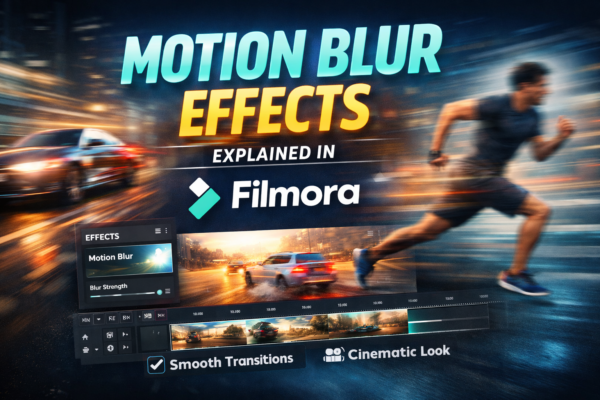
Motion blur is one of those subtle effects that can instantly make your video look more cinematic and professional. If you’ve ever watched a fast-moving scene and noticed that smooth, dreamy blur during motion — that’s motion blur at work.
In this guide, you’ll learn exactly how motion blur in Filmora works, how to apply it properly, and how to use it like a pro—even if you’re a beginner.
Quick Answer (AEO Optimized)
Motion blur in Filmora is a visual effect that simulates the natural blur that occurs when objects move quickly in real life. You can apply it using built-in effects, adjust intensity, and combine it with transitions or speed changes to create smooth, cinematic motion in your videos.
What Is Motion Blur in Filmora?
Motion blur is a video editing effect that mimics how cameras capture movement in real life. When something moves quickly, it appears slightly blurred instead of perfectly sharp.
In Filmora, motion blur helps you:
- Smooth out fast transitions
- Add realism to movement
- Create cinematic visuals
- Reduce choppiness in fast clips
Simple Example:
Imagine recording a car passing by:
- Without motion blur → looks sharp but unnatural
- With motion blur → looks smooth and realistic
Why Use Motion Blur Effects?
Using motion blur strategically can elevate your videos significantly. Here’s why creators love it:
Key Benefits:
- Professional Look: Makes videos feel like high-end productions
- Smooth Transitions: Blends clips seamlessly
- Realism: Mimics real-world camera behavior
- Focus Control: Draws attention to subjects
How to Add Motion Blur in Filmora (Step-by-Step)
Follow these simple steps to apply motion blur:
1: Import Your Video
- Open Filmora
- Click Import Media
- Drag your clip to the timeline
2: Go to Effects Panel
- Click on Effects
- Search for Motion Blur
3: Apply the Effect
- Drag the motion blur effect onto your clip
4: Adjust Settings
Double-click the clip to customize:
- Blur strength
- Direction
- Opacity
5: Preview and Export
- Play your video
- Fine-tune settings
- Export when satisfied
Best Motion Blur Settings (Pro Tips)
Getting the right settings makes all the difference.
Recommended Settings:
- Light Motion (Subtle scenes): 10–20% blur
- Fast Action (Sports/Transitions): 30–60% blur
- Cinematic Effect: Combine with slow motion
Pro Tip:
Avoid overusing motion blur—it can make your video look messy or unclear.
When Should You Use Motion Blur?
Motion blur isn’t for every scene. Use it wisely.
Ideal Use Cases:
- Action scenes
- Travel videos
- Gaming edits
- Cinematic storytelling
- Fast transitions
Avoid Using It:
- On static scenes
- For text-heavy videos
- When clarity is important
Motion Blur vs No Motion Blur (Comparison)
| Feature | With Motion Blur | Without Motion Blur |
|---|---|---|
| Realism | High | Low |
| Smoothness | Smooth | Slightly choppy |
| Professional Look | Cinematic | Basic |
| Clarity | Slightly reduced | Sharp |
Advanced Techniques for Motion Blur in Filmora
Want to level up? Try these techniques:
1. Combine with Speed Ramping
- Add speed changes
- Apply motion blur during fast parts
2. Use with Transitions
- Apply blur between cuts
- Makes transitions seamless
3. Add Directional Blur
- Match blur direction with movement
- Creates realistic motion
4. Layer Effects
- Combine motion blur + glow or light leaks
- Enhances visual impact
Common Mistakes to Avoid
Even beginners can avoid these pitfalls:
- ❌ Overusing motion blur
- ❌ Applying blur to static scenes
- ❌ Ignoring direction of movement
- ❌ Using maximum intensity unnecessarily
FAQs
1. What is motion blur in video editing?
Motion blur is an effect that simulates natural blur during fast movement, making videos look smoother and more realistic.
2. Does Filmora have built-in motion blur?
Yes, Filmora includes built-in motion blur effects that you can apply from the Effects panel.
3. How much motion blur should I use?
Use 10–20% for subtle scenes and up to 60% for fast action, depending on your video style.
4. Can motion blur improve video quality?
It doesn’t increase resolution but enhances perceived quality by making motion smoother and more cinematic.
5. Is motion blur good for YouTube videos?
Yes, especially for gaming, travel, and cinematic content—but it should be used moderately.
Final Thoughts
Motion blur is a small detail that makes a huge difference. When used correctly, it transforms ordinary clips into cinematic experiences.
If you’re editing in Filmora, mastering motion blur is one of the easiest ways to upgrade your video quality without needing advanced skills.
Start simple, experiment with settings, and soon you’ll develop your own editing style.
Call-to-Action
Ready to make your videos look professional?
Open Filmora today and start experimenting with motion blur—your audience will notice the difference instantly.











