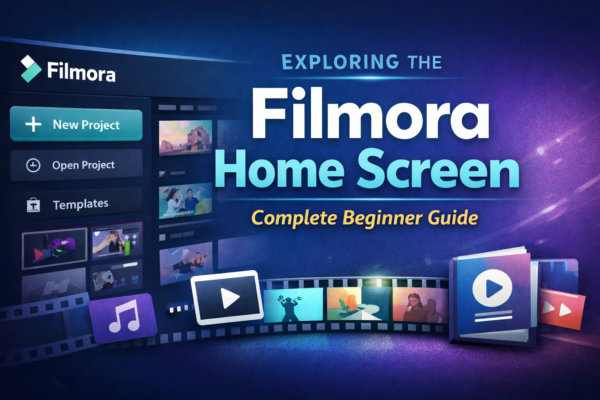
When you open Wondershare Filmora for the first time, the Filmora Home Screen is the first interface you interact with. For beginners, this screen may look simple, but it actually acts as the central hub for starting, managing, and organizing video editing projects. If you haven’t installed the software yet, you can first read our complete guide on How to Download and Install Filmora to set up the program on your computer. https://youtubevideoeditingservices.com/how-to-install-filmora-windows-mac/ You can also download the latest version directly from the official Wondershare Filmora website https://filmora.wondershare.com/
You can also explore the Filmora Learning Center on the official Wondershare website to find tutorials, tips, and guides that help beginners learn video editing more effectively. https://filmora.wondershare.com/video-editing-tips/
Whether you’re a YouTuber, social media creator, freelancer, or beginner video editor, understanding the Filmora Home Screen will help you start editing faster and avoid confusion.
In this guide, we will explore the Filmora Home Screen layout, features, tools, and best practices so you can confidently begin your video editing journey.
Quick Answer
The Filmora Home Screen is the main dashboard that appears when you launch Wondershare Filmora. It allows users to create new projects, access existing projects, explore templates, adjust settings, and learn editing tools. This screen acts as the starting point for all video editing tasks in Filmora.
What is the Filmora Home Screen?
The Filmora Home Screen is the starting dashboard of Wondershare Filmora designed to make video editing simple and beginner-friendly.
It helps users to:
- Start a new video project
- Open previously saved projects
- Access built-in templates
- Choose video aspect ratios
- Navigate tutorials and learning resources
Compared to complex editing software like Adobe Premiere Pro, Filmora focuses on simplicity and accessibility, which is why its Home Screen layout is clean and easy to understand.
Main Sections of the Filmora Home Screen
Understanding the main sections of the Filmora Home Screen helps you navigate the software more efficiently.
1. New Project Option
The New Project button is the most important feature on the Filmora Home Screen.
When you click New Project, Filmora opens the main editing workspace where you can:
- Import video clips
- Add music and sound effects
- Apply transitions and effects
- Edit videos using the timeline
This option is ideal when you want to create a video from scratch.
Best Practice:
Always choose the correct aspect ratio before starting your project.
Common aspect ratios include:
- 16:9 – YouTube videos
- 9:16 – TikTok, YouTube Shorts, Instagram Reels
- 1:1 – Instagram feed posts
2. Open Existing Projects
The Filmora Home Screen also includes a recent projects section where you can reopen previously saved projects.
This feature allows you to:
- Continue unfinished editing projects
- Review previous videos
- Access frequently used files quickly
For creators who manage multiple projects, this feature improves productivity and workflow.
3. Templates and Instant Mode
Filmora provides built-in templates that help beginners create professional videos quickly.
Templates may include:
- YouTube intro templates
- Slideshow templates
- Social media video layouts
- Promotional video styles
Instead of editing everything manually, users can simply:
- Choose a template
- Replace media files
- Export the video
This feature saves time and helps beginners produce high-quality videos easily.
4. Aspect Ratio Selection
Before starting a project, the Filmora Home Screen allows you to choose the video aspect ratio.
Different platforms require different aspect ratios.
YouTube videos – 16:9
TikTok videos – 9:16
Instagram feed – 1:1
Instagram Reels – 9:16
Selecting the correct ratio ensures your video fits perfectly on your chosen platform.
Why the Filmora Home Screen is Beginner-Friendly
One of the biggest reasons Wondershare Filmora is popular among creators is its simple and intuitive interface.
Key Advantages
- Clean and simple navigation
- Quick access to editing tools
- Built-in templates for fast video creation
- Beginner-friendly layout
- Integrated tutorials for learning
Compared to advanced editing software, Filmora significantly reduces the learning curve for beginners.
Filmora Home Screen vs Editing Workspace
Many beginners confuse the Filmora Home Screen with the editing workspace.
Here is the difference.
Filmora Home Screen
Purpose: Start or manage projects
Tools: Project options, templates, tutorials
Editing Workspace
Purpose: Edit videos
Tools: Timeline, effects, transitions, audio editing
The Home Screen is the starting point, while the editing workspace is where the actual video editing takes place.
Practical Example: Starting Your First Video
Here is a simple workflow using the Filmora Home Screen.
Step 1 – Open Wondershare Filmora
Step 2 – On the Filmora Home Screen, click New Project
Step 3 – Select the correct aspect ratio (16:9 for YouTube)
Step 4 – Import your video clips
Step 5 – Drag clips to the timeline
Step 6 – Add text, effects, and music
Step 7 – Export your finished video
This workflow makes it easy for beginners to create their first video.
Best Tips for Using the Filmora Home Screen
To make the most of the Filmora Home Screen, follow these expert tips.
Choose the correct aspect ratio before starting your project.
Rename and organize projects so they are easy to find later.
Use templates if you want to create videos quickly.
Explore Filmora tutorials to learn advanced editing techniques.
Keep Filmora updated to access new features and templates.
Use Cases for the Filmora Home Screen
The Filmora Home Screen is useful for many types of creators.
YouTubers
They can quickly start videos using the 16:9 layout.
Social Media Creators
They can create vertical videos for TikTok, Instagram Reels, or YouTube Shorts.
Freelancers
They can manage multiple client projects easily.
Businesses
They can create promotional and marketing videos using templates.
Frequently Asked Questions (FAQs)
What is the Filmora Home Screen?
The Filmora Home Screen is the main dashboard that appears when you open Wondershare Filmora. It allows users to create new projects, open existing projects, access templates, and choose video settings.
Can I start editing directly from the Filmora Home Screen?
Yes. Simply click New Project, choose the aspect ratio, and Filmora will open the editing workspace where you can start editing your video.
Why is the Filmora Home Screen important?
The Filmora Home Screen helps users manage projects, start new videos, access templates, and learn editing tools. It acts as the main control center for Filmora.
Does Filmora provide templates on the Home Screen?
Yes. Filmora offers built-in templates that allow beginners to create professional videos quickly.
Is the Filmora Home Screen beginner-friendly?
Yes. The Filmora Home Screen is designed specifically for beginners with a simple layout, templates, and tutorials that make video editing easier.
Conclusion
The Filmora Home Screen is the central hub that helps you start, manage, and organize video editing projects in Wondershare Filmora. From creating new projects and opening previous ones to choosing templates and learning editing techniques, everything begins here.
Once you understand how the Filmora Home Screen works, you can start editing videos faster and more efficiently.
If you’re a beginner looking to create videos for YouTube, social media, or freelance work, mastering this screen is the first step toward becoming a confident video editor.











