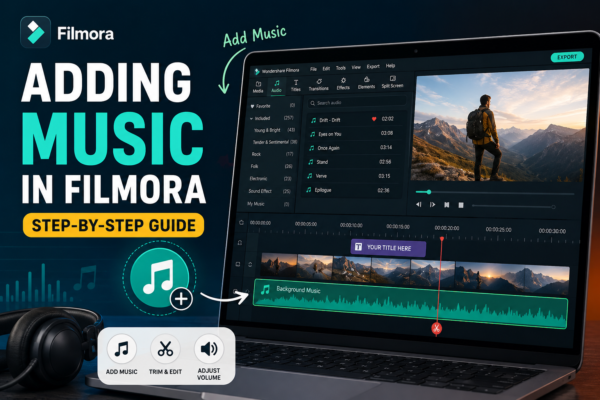
Ever watched a video that felt… empty? Chances are, it was missing one crucial ingredient: music.
Whether you’re creating YouTube content, Instagram reels, or cinematic travel videos, background music can transform a dull clip into an emotional, engaging story. The good news? If you’re using Filmora, adding music is incredibly simple—but doing it well is where the real skill comes in.
In this guide, you’ll learn not just how to add music in Filmora, but how to do it like a pro—with smooth transitions, perfect timing, and balanced audio.
✅ Quick Answer
To add music in Filmora, import your audio file, drag it to the timeline, and adjust its position and volume. You can also use Filmora’s built-in music library, trim clips, apply fade effects, and sync audio with video for a professional finish.
🎬 What is Adding Music in Filmora?
Adding music in Filmora refers to inserting background audio tracks into your video project to enhance mood, storytelling, and viewer engagement. It includes:
- Importing audio files (MP3, WAV, etc.)
- Using built-in royalty-free music
- Syncing music with video scenes
- Adjusting volume and applying effects
🎧 Why Music Matters in Video Editing
Music isn’t just decoration—it’s storytelling.
Key Benefits:
- Emotional Impact: Sets the mood (happy, sad, suspenseful)
- Professional Feel: Makes videos look polished
- Viewer Retention: Keeps audiences engaged longer
- Brand Identity: Helps establish a consistent style
Example:
A travel vlog with upbeat music feels adventurous, while the same video with slow piano music feels nostalgic.
🛠️ How to Add Music in Filmora (Step-by-Step)
1. Import Your Media
- Open Filmora
- Click Import Media
- Upload your video and music files
2. Add Video to Timeline
- Drag your video clip to the timeline
3. Add Music Track
- Drag your audio file below the video track
- Align it with your video
4. Trim and Adjust
- Cut unwanted parts using the Split Tool
- Move clips to sync with visuals
5. Adjust Volume
- Double-click the audio track
- Use the volume slider to balance sound
6. Add Fade Effects
- Apply Fade In and Fade Out for smooth transitions
🎼 Using Filmora’s Built-in Music Library
Filmora includes a collection of royalty-free music tracks.
How to Access:
- Go to the Audio tab
- Select Music
- Browse categories like:
- Cinematic
- Vlog
- Travel
- Corporate
Benefits:
- No copyright issues
- Ready-to-use tracks
- Saves time searching externally
🎯 Pro Tips for Better Music Integration
🎚️ 1. Balance Audio Levels
- Keep background music lower than dialogue
- Ideal range: -20dB to -30dB for music
⏱️ 2. Match Music to Video Pace
- Fast cuts → energetic music
- Slow scenes → soft music
🔁 3. Loop Music Seamlessly
- Extend short tracks without noticeable breaks
🎵 4. Use Beat Matching
- Sync cuts or transitions with music beats
🎧 5. Avoid Overpowering Audio
- Music should support—not dominate—the video
📊 Common Use Cases
🎥 YouTube Videos
- Intro/outro music
- Background ambiance
📱 Social Media Content
- Trending music clips
- Short engaging loops
🎞️ Cinematic Videos
- Emotional storytelling
- Dramatic soundtracks
📚 Tutorials & Courses
- Light background music for engagement
⚖️ Adding Music in Filmora vs Other Editors
| Feature | Filmora | Premiere Pro | CapCut |
|---|---|---|---|
| Ease of Use | ⭐⭐⭐⭐⭐ | ⭐⭐⭐ | ⭐⭐⭐⭐ |
| Built-in Music | Yes | Limited | Yes |
| Audio Controls | Good | Advanced | Basic |
| Best For | Beginners & Creators | Professionals | Mobile Editing |
Verdict:
Filmora strikes the perfect balance between simplicity and powerful features.
👍 Pros and Cons
Pros:
- Easy drag-and-drop interface
- Built-in royalty-free music
- Quick audio editing tools
- Beginner-friendly
Cons:
- Limited advanced audio mixing
- Fewer customization options than pro tools
❓ FAQ Section
1. How do I add background music in Filmora?
- Import your audio file
- Drag it to the timeline
- Adjust volume and sync with video
2. Can I use Filmora music for YouTube videos?
Yes, Filmora provides royalty-free music, but always check licensing terms to avoid copyright issues.
3. How do I lower music volume in Filmora?
- Double-click the audio track
- Adjust the volume slider
- Use keyframes for precise control
4. How do I sync music with video?
- Align beats with cuts
- Use waveform visualization
- Trim or shift audio accordingly
5. What audio formats does Filmora support?
Filmora supports:
- MP3
- WAV
- AAC
- OGG
🧠 Expert Insights (EEAT)
Professional editors don’t just “add music”—they design sound.
Here’s what experts recommend:
- Always preview your video with headphones and speakers
- Use silence strategically—don’t fill every second with music
- Build emotional arcs using music transitions
🧾 Conclusion
Adding music in Filmora is easy—but mastering it is what sets your videos apart.
By choosing the right track, balancing audio levels, and syncing with your visuals, you can turn ordinary footage into compelling stories that connect with your audience.
👉 Start experimenting today—try different genres, play with timing, and let your creativity lead.
Your video isn’t complete until it sounds as good as it looks. 🎬🎵











