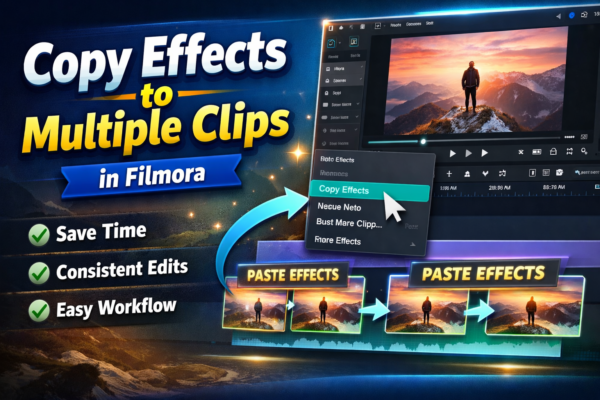
Editing videos can feel repetitive—especially when you apply the same effect again and again. If you’re using Wondershare Filmora, there’s a much faster way to streamline your workflow.
Learn more in our detailed guide on How to Apply Effects in Filmora to Specific Clips (Step-by-Step Guide) https://youtubevideoeditingservices.com/apply-effects-in-filmora-specific-clips/👉to gain precise control over your edits and enhance individual scenes effortlessly. 🎬
For more advanced tools and official updates, visit the Wondershare Filmora to explore all features and resources https://filmora.wondershare.com/
In this guide, you’ll learn exactly how to copy effects to multiple clips in Filmora, saving time while maintaining consistency in your edits.
✅ Quick Answer (AEO Optimized)
To copy effects to multiple clips in Wondershare Filmora, right-click the clip with the effect, select Copy Effects, then select other clips, right-click, and choose Paste Effects. You can also use Adjustment Layers to apply effects across multiple clips at once.
🎬 Why Copying Effects Matters in Video Editing
Imagine editing a YouTube video with 20 clips—and applying the same color grading or blur effect manually to each one. That’s not just slow… it’s frustrating.
Copying effects helps you:
- ⏱ Save hours of editing time
- 🎨 Maintain visual consistency
- ⚡ Speed up your workflow
- 🎥 Create professional-looking videos faster
Whether you’re editing tutorials, vlogs, or cinematic content, mastering this feature is essential.
🔍 What Does “Copying Effects” Mean?
Copying effects means duplicating visual adjustments (like filters, transitions, color grading, or overlays) from one clip and applying them to other clips.
Common Effects You Can Copy:
- Color correction (brightness, contrast, LUTs)
- Filters & presets
- Blur or mosaic effects
- Video transitions
- Audio effects
🛠 How to Copy Effects to Multiple Clips in Filmora
Method 1: Copy & Paste Effects (Quick Method)
This is the easiest and most commonly used method.
Step-by-Step:
- Select the clip with the effect applied
- Right-click on the clip
- Click Copy Effects
- Select one or multiple target clips (hold Ctrl for multiple)
- Right-click → Click Paste Effects
✅ Done! The same effects will be applied instantly.
Method 2: Use Adjustment Layers (Pro Method)
If you want to apply effects across multiple clips at once, this method is even better.
Steps:
- Go to Media Panel → Adjustment Layer
- Drag it above your clips in the timeline
- Stretch it across all clips
- Apply effects to the adjustment layer
💡 Now, all clips underneath will inherit the same effect.
Method 3: Save Custom Presets
If you frequently reuse the same effects:
- Apply effects to a clip
- Go to Effects Panel
- Click Save as Preset
- Apply it anytime with one click
💡 Real-World Example
Let’s say you’re editing a YouTube tutorial:
- Intro clips need a warm color tone
- All clips need the same brightness & contrast
- Outro clips need blur + fade
Instead of editing each clip manually:
👉 Apply effects once → Copy → Paste across all clips
This reduces editing time from 30 minutes to just 5 minutes.
⚖️ Copy Effects vs Adjustment Layers
| Feature | Copy & Paste Effects | Adjustment Layers |
|---|---|---|
| Ease of use | Very easy | Moderate |
| Best for | Few clips | Many clips |
| Flexibility | Limited | High |
| Editing control | Per clip | Global |
🏆 Best Practice:
- Use Copy/Paste for small edits
- Use Adjustment Layers for large projects
🚀 Pro Tips for Faster Editing
- ✔ Group similar clips together before editing
- ✔ Use keyboard shortcuts to speed up workflow
- ✔ Combine effects into presets
- ✔ Always preview after applying effects
- ✔ Avoid overusing heavy effects (keeps video smooth)
❓ FAQ Section (AEO Optimized)
1. How do I copy effects in Filmora quickly?
- Right-click the edited clip
- Select Copy Effects
- Paste onto selected clips
2. Can I apply effects to multiple clips at once?
Yes. Use:
- Adjustment layers
- Multi-select clips + paste effects
3. Do copied effects overwrite existing effects?
Yes. Pasting effects will replace current effects on the target clip.
4. What is the fastest way to apply effects in Filmora?
Using Adjustment Layers is the fastest for bulk editing.
5. Can I reuse effects in future projects?
Yes. Save them as custom presets and apply anytime.
🧠 Expert Insight (EEAT)
Professional editors don’t just edit faster—they edit smarter.
Using features like effect copying and adjustment layers in Wondershare Filmora ensures:
- Consistent branding
- Efficient workflow
- Scalable editing for large projects
This is especially important for:
- YouTubers
- Freelancers
- Content creators
🎯 Conclusion
Copying effects to multiple clips in Wondershare Filmora is a simple yet powerful skill that can completely transform your editing speed and quality.
Instead of repeating the same steps, you can:
- Work faster
- Stay consistent
- Focus on creativity
👉 Start using these methods today and take your video editing workflow to the next level.











