Learn how to edit like a pro with these beginner-friendly tips!
1. Choose the Right Software
- Start with user-friendly tools like iMovie, Filmora, or DaVinci Resolve.
- Gradually move to advanced software like Adobe Premiere Pro or Final Cut Pro.

2. Organize Your Footage
- Always rename your files and create folders for easy navigation.
- Use a consistent naming convention (e.g., Scene_01, Scene_02).

3. Learn the Basics of Cutting and Trimming
- Focus on removing unnecessary footage to keep your videos concise.
- Use shortcuts to speed up the editing process.
4. Add Smooth Transitions
- Stick to simple transitions like fades and cuts for a polished look.
- Avoid overusing fancy effects that distract from the content.
5. Pay Attention to Audio
- Balance background music and dialogue.
- Use tools to remove background noise and enhance clarity.

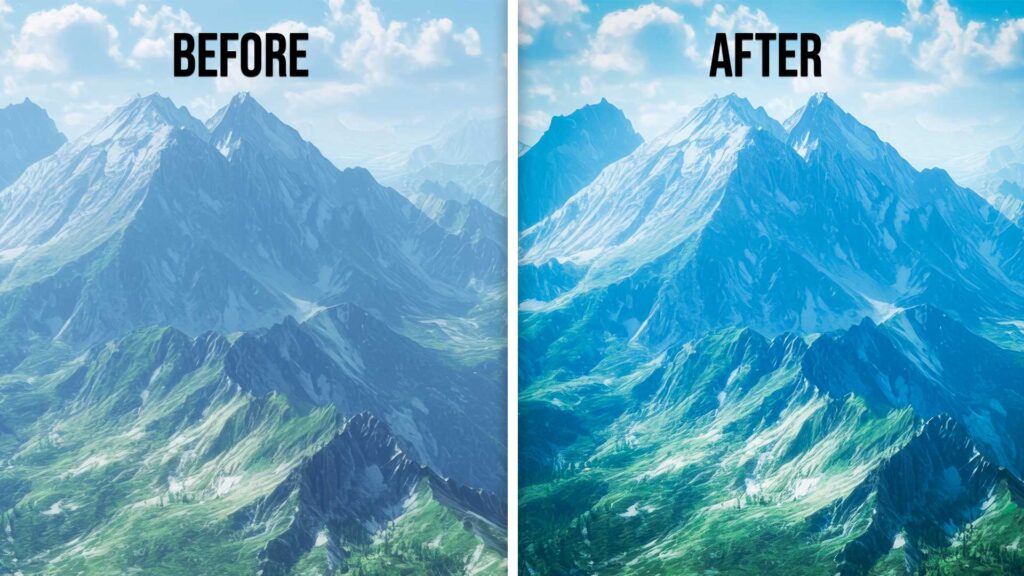
6. Use Color Grading to Set the Mood
- Experiment with brightness, contrast, and saturation.
- Use LUTs (Look-Up Tables) for a professional finish.
7. Add Text and Titles Wisely
- Keep text simple, readable, and aligned with the video’s theme.
- Use animations for intros and outros to captivate viewers.

8. Use Keyboard Shortcuts
- Memorize shortcuts for cutting, undoing, and rendering to save time.
- Most software provides customizable shortcut options.

9. Export in the Right Format
- Choose the correct resolution and bitrate for your platform (e.g., YouTube, Instagram).
- Use codecs like H.264 for a good balance of quality and file size.
Visual Idea: Settings menu showing export options.
10. Keep Practicing
- The more you edit, the more you’ll improve your speed and creativity.
- Watch tutorials and take on small projects to learn new skills.
Visual Idea: Progression of a beginner’s project to an advanced edit.
Images for the Post
Here are the suggested visuals you can create or source:
- Feature Image: A computer screen showing a video editing timeline with tools like Premiere Pro or iMovie.
- Organized Files: Neatly arranged folders on a desktop with labeled video files.
- Timeline GIF: A short GIF showcasing how to trim clips in a timeline.
- Smooth Transition Example: Before and after visuals of a fade transition.
- Audio Adjustment: Screenshot of an audio track being balanced in editing software.
- Color Grading: A side-by-side comparison of raw vs. color-graded footage.
- Text Overlay: Example of a professional title added to a video.
- Keyboard Shortcuts: Infographic or chart of common editing software shortcuts.
- Export Settings: Visual of the export menu with platform-specific settings.
- Progression Chart: A grid showing a beginner’s edit evolving to a professional result.
Would you like help designing specific images or creating captions for these visuals?











